Learn how to mirror and record your iPhone screen on MacBook using Detail Capture, then edit seamlessly on your iPhone with Detail app.
There's a surprisingly simple way to connect your iPhone to your MacBook for professional screen recording that many people don't know about. The process takes just a few minutes to set up and creates incredibly polished results, especially for creating reviews or tutorials.
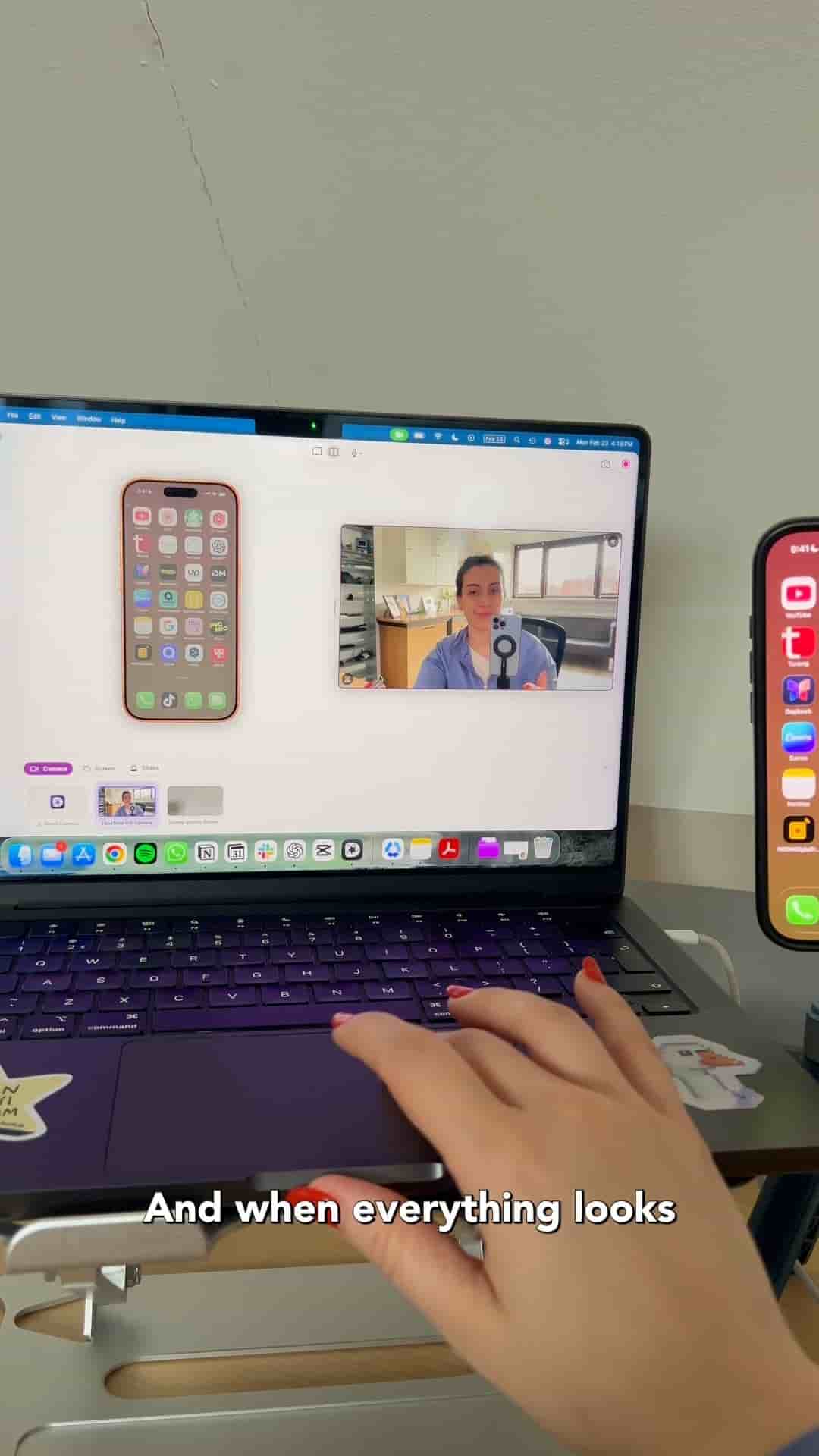
The setup is straightforward. You'll need a Type-C cable to physically connect your iPhone to your MacBook. Once connected, the magic happens through an app called Detail Capture on your Mac. When you first connect, you'll get a prompt to allow the accessory to connect. Accept it, and your iPhone screen will appear right on your MacBook display.
Detail Capture lets you use multiple sources simultaneously. After your iPhone screen appears as the primary source, you can add your webcam as a second source. This is particularly powerful because it means you can react to what's happening on your iPhone screen while recording, creating that reaction video style that works so well for app reviews and demonstrations.
Once both sources are set up and positioned how you want them, simply hit record. The app captures everything: your iPhone screen activity and your webcam footage, all synchronized perfectly.
Here's where things get really clever. When you're finished recording, you don't need to wrestle with moving large video files around. Just click "share to Detail" within Detail Capture and use AirDrop to send the project directly to your iPhone.
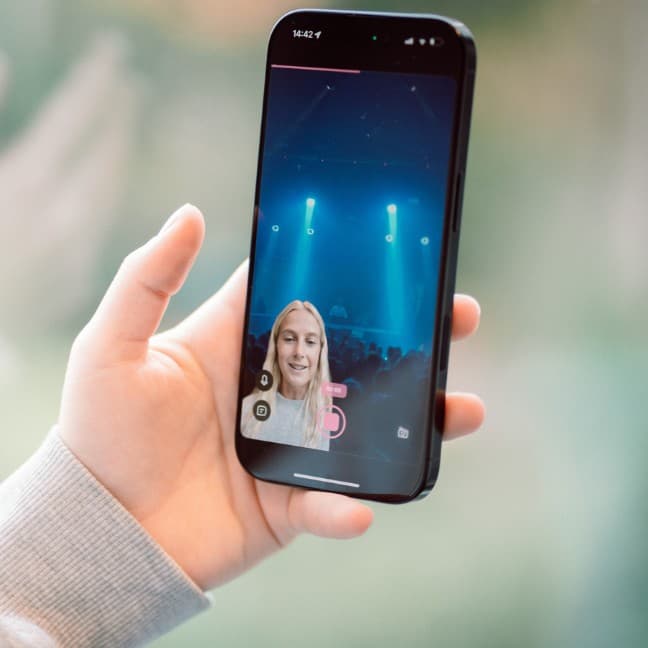
The project automatically opens in the Detail app on your iPhone, where you can edit right on the device. This makes the workflow incredibly smooth, especially if you're creating content for social media.
When you AirDrop the project to your iPhone, it will automatically open the Detail app and you can start editing your video.
The editing capabilities are robust despite being mobile. You can change the aspect ratio of your video (vertical for Reels or TikTok, for instance), resize both the front and back sources to create picture-in-picture effects or adjust composition, and export your finished video directly from your phone.
This workflow solves a common problem for content creators: how to professionally capture iPhone screen activity while adding your own presence to the video. The traditional approach requires screen recording on the iPhone itself, then somehow combining that with webcam footage later. This method does it all in one take.
The ability to edit on your iPhone after recording on your Mac also keeps you in a mobile-first workflow, which makes sense if you're creating content for platforms like Instagram, TikTok, or YouTube Shorts.
To get started, download Detail Capture on your Mac and Detail on your iPhone. The combination of these two apps transforms how you can create screen recording content, making professional results accessible without complicated video editing software or workarounds.