Learn how to make reaction videos directly on your iPhone using Descript by simply importing any web video URL, no sketchy software needed.
Making reaction videos used to mean wrestling with questionable software and complicated workflows. Not anymore. I'm going to show you how to create reaction videos with any video you find on the web, importing it straight into Detail on your iPhone. Just copy and paste the URL, and you're ready to go.
The beauty of this approach is its simplicity. No downloading videos to your device first, no third party apps, no complications. Everything happens directly in the Detail app.
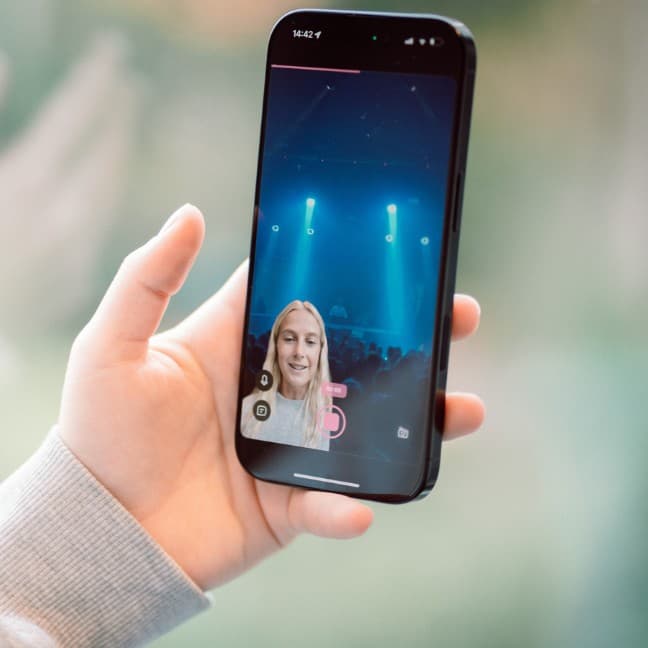
First things first, you need an iPhone with Detail installed. Once you've got that, fire up the app and open a new project. The key here is to make sure your video layout is set to picture in picture. This gives you that classic reaction video format where you're on screen alongside the video you're reacting to.
Head to sources and make sure the background is selected. Then hit "import video URL." This is where the magic happens. You can copy and paste any video URL. In my case, I'm using some of my own work that I share on Instagram, but this works with content from across the web.
Hit download, and Detail takes care of the rest. The app will prepare and download the video right there. No waiting around, no complicated steps. It's already imported and ready to work with.
At this point, you have two options. You can either change the layout before recording or start recording right away and adjust everything later. For this example, I'm going to customize the layout first to make it more personalized.
I want to create a mouse version layout and place myself in the right corner. You can move things around until you find the setup that works for your style. Once you're happy with how everything looks, you're ready to record.
Hit record, and here's another smart feature: Detail automatically mutes the background noise so it's not interfering with whatever you're reacting to. You'll see it says "mute and record," and then it starts recording.
Now you can do your talking or reaction video. In my example, I was shooting for an artist I'm traveling with. When the video finishes, it will loop automatically. So if you keep talking, the video just loops in the background. Simple as that.
Detail automatically mutes the background noise so it's not interfering with whatever you're reacting to.
When you're done, just stop the recording. But the editing doesn't end there.
You can even adjust the audio levels after recording. This means you can balance your voiceover against the background video audio, making sure everything sounds exactly how you want it. Too much background noise? Turn it down. Want to hear the original video more clearly? Adjust accordingly.
The whole process is streamlined and intuitive. No need to export and import between different apps. Everything happens in one place, on the device you already have in your pocket.
So there you go. Happy reacting, and catch you on the next one.