Learn how to turn your iPad into a complete podcast studio using the Detail app, dual cameras, and wireless microphones for professional results.
I'm going to be honest with you. Recording a professional podcast doesn't require a massive studio setup or thousands of dollars in equipment. In fact, you can create high-quality podcast content with just your iPad, and I'm about to show you exactly how.
The game changer here is using your iPad's front and back cameras simultaneously to capture two angles during recording. This gives you that polished, multi-camera look without needing multiple devices or complex setups. The Detail app makes this incredibly simple, transforming your iPad into a complete podcast production studio that handles both recording and editing.
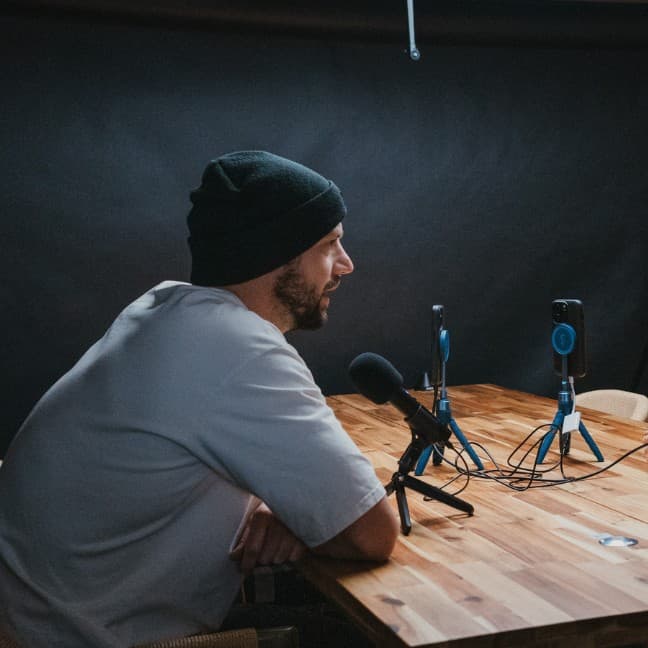
Let's start with the essentials. You need your iPad (obviously), the Detail app, and a set of wireless microphones. I use Hollyland wireless mics, and here's what's crucial: get the microphones that have two mics connected to one receiver. This setup allows you to bring a guest without needing additional equipment.
The only other thing you'll need is a simple tripod. I don't even have an iPad-specific tripod. I'm using a regular phone tripod and just placing the iPad on it. You can get creative here. Even propping something behind your iPad to hold it up works perfectly fine, as long as your cameras stay clear.
Once you have your gear, open the Detail app on your iPad and start a new project. Here's where the magic happens: select the split screen option. This activates the dual camera mode, meaning both your front and back cameras will be recording simultaneously.
Now, you have a choice between landscape or vertical recording. Here's my recommendation: use landscape. This gives you more flexibility later when you're editing, and you can always crop to vertical if you need to. It's much easier to go from landscape to vertical than the other way around.
Position your tripod and mount your iPad. Once you're set, plug in your microphones. These are plug and play, so just connect them to your iPad. You'll see the light turn on, and the app will show you the mic icon once they're recognized. With one receiver and two mics, you're ready for both you and your guest.
Keep it relaxed, natural, and enjoy the chat.
When everything is in place, hit record and start your conversation. Don't stress about perfection at this stage. Just have a genuine conversation.
Here's the best part: the Detail app isn't just for filming. It's also a really good editing app. Once you're done recording, your timeline is ready to go. You can start trimming and cutting right away.
Pro tip: if you're editing on your iPad, connect a keyboard. The shortcuts make editing way faster, and having a bigger screen helps a lot.
Start by trimming and cutting the parts you don't want in your podcast. Tap on the video in your timeline, go to the moment you don't want, split it, then highlight the part you want to remove and tap delete. You'll do this a couple of times until you remove all the moments you don't want.
But here's my advice: keep it natural. Don't stress too much about being perfect. Don't overthink every moment. Just let them be. Authenticity beats perfection in podcasting.
Once you're done with trimming, add captions. Just go to the captions section and hit generate. After you get the captions, you can play around with the font and color options to match the style you want for your video.
Give it a quick look, and once you're happy with your edit, tap export and save it to your camera roll. Here's another advantage: you can also export an audio-only file. This means you can upload the same episode to YouTube, Twitch, and Spotify at the same time.
Want to create a vertical version for social media? Go to aspect ratio, tap vertical, adjust the location of the captions to put them in the middle, and export this other version to upload to TikTok or Instagram Reels.
Let me tell you why I love this setup. It's compact, it's quick, and it gives you professional quality results. The editing is so much faster and easier when you have an iPad. Everything you need is in one device, from recording to final export.
My best advice? Don't overthink it. Just grab what you have, hit record, and start creating. The barrier to entry for podcasting has never been lower, and there's no reason to wait for the "perfect" setup. Your iPad is already more than capable of producing content that looks and sounds professional.
The key is to start. Get comfortable with the process, develop your style, and improve as you go. With this iPad setup, you can focus on what really matters: having great conversations and creating content that resonates with your audience.