A practical walkthrough of creating professional podcast videos using two iPhones, Detail app, and external audio recording equipment.
Setting up a professional-looking podcast doesn't require a full studio anymore. With just two iPhones, the Detail app, and some basic audio equipment, you can create high-quality content with multiple camera angles and professional sound.
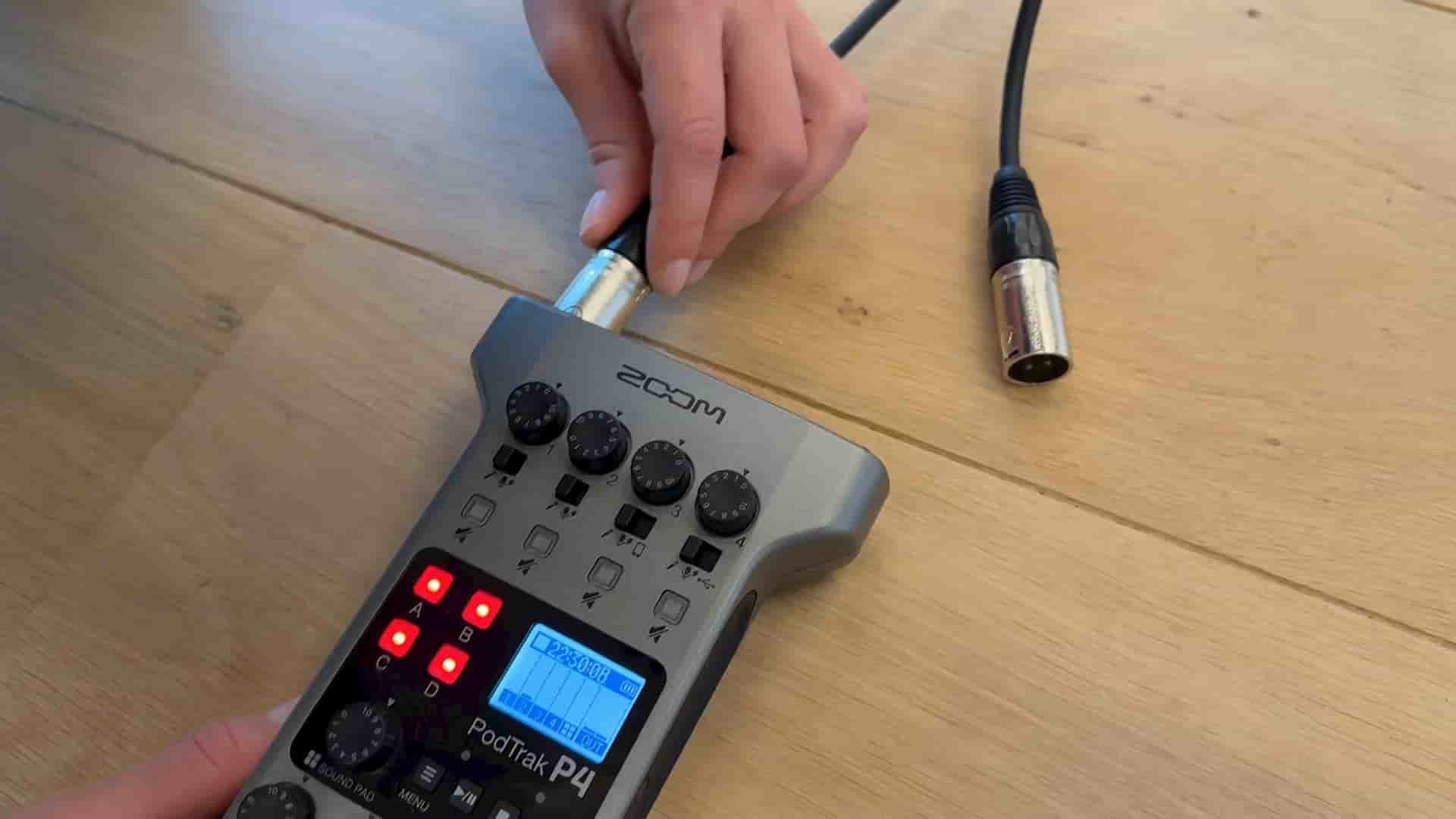
This setup uses two iPhones running Detail, paired with two professional microphones connected to an audio recorder via XLR cables. Everything runs on phantom power, creating a reliable system that produces broadcast-quality results.
The audio chain starts with two professional microphones plugged into channels 1 and 2 of the recorder, where you can adjust levels independently. A USB cable runs from the recorder to one of the iPhones. If you're using an iPhone 15, you can connect directly with USB-C. For older models, you'll need a Lightning to USB adapter to bridge the connection between the recorder's USB-C output and your iPhone's Lightning port.
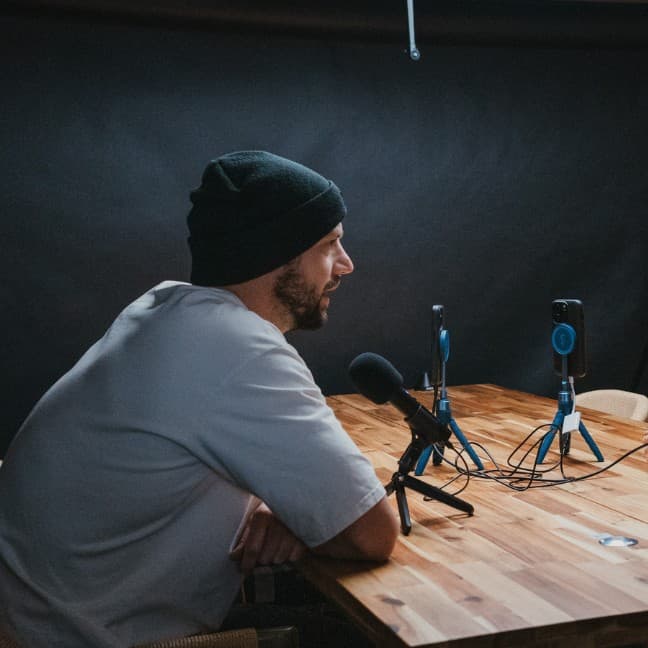
The key to good visuals is stability. Use two sturdy tripods for your iPhones. The camera positioning might seem counterintuitive at first, but it's essential for creating the professional cross-shot look: the right camera shoots the left guest, and the left camera shoots the right guest.
Open Detail on both iPhones. Initially, you'll see the selfie camera view. Tap the plus icon with a person symbol in the top right corner on the first iPhone, then do the same on the second device. They'll connect automatically.
Switch the layout to split screen so you can see what both cameras are actually capturing. Here's a critical step: you want to use the rear cameras, not the selfies. Tap the camera switch icon to flip from the front-facing camera to the rear camera. Repeat this on both iPhones, making sure both are set to split screen layout.
When you see the USB connection icon on your screen, it means your recorder is properly connected and ready to capture audio.
Once everything is positioned and connected, you're ready to roll. Hit record on one iPhone, and the other should automatically start recording as well. This synchronized recording is one of Detail's most powerful features.
When you're finished, tap record again on either iPhone to stop both recordings simultaneously. You should see a waveform appear on the iPhone that's connected to the recorder, confirming that it captured the external audio. You can immediately play back your recording and start editing right on the device.
Here's the most important reminder: while the recording sent to the iPhone is your primary file, always grab the backup recordings from your audio recorder itself. This redundancy can save your entire shoot if something goes wrong with the phone connection.
That's the complete setup. With this configuration, you have professional multi-camera video synchronized with high-quality audio, all manageable from your pocket. Good luck, and enjoy creating your podcast.