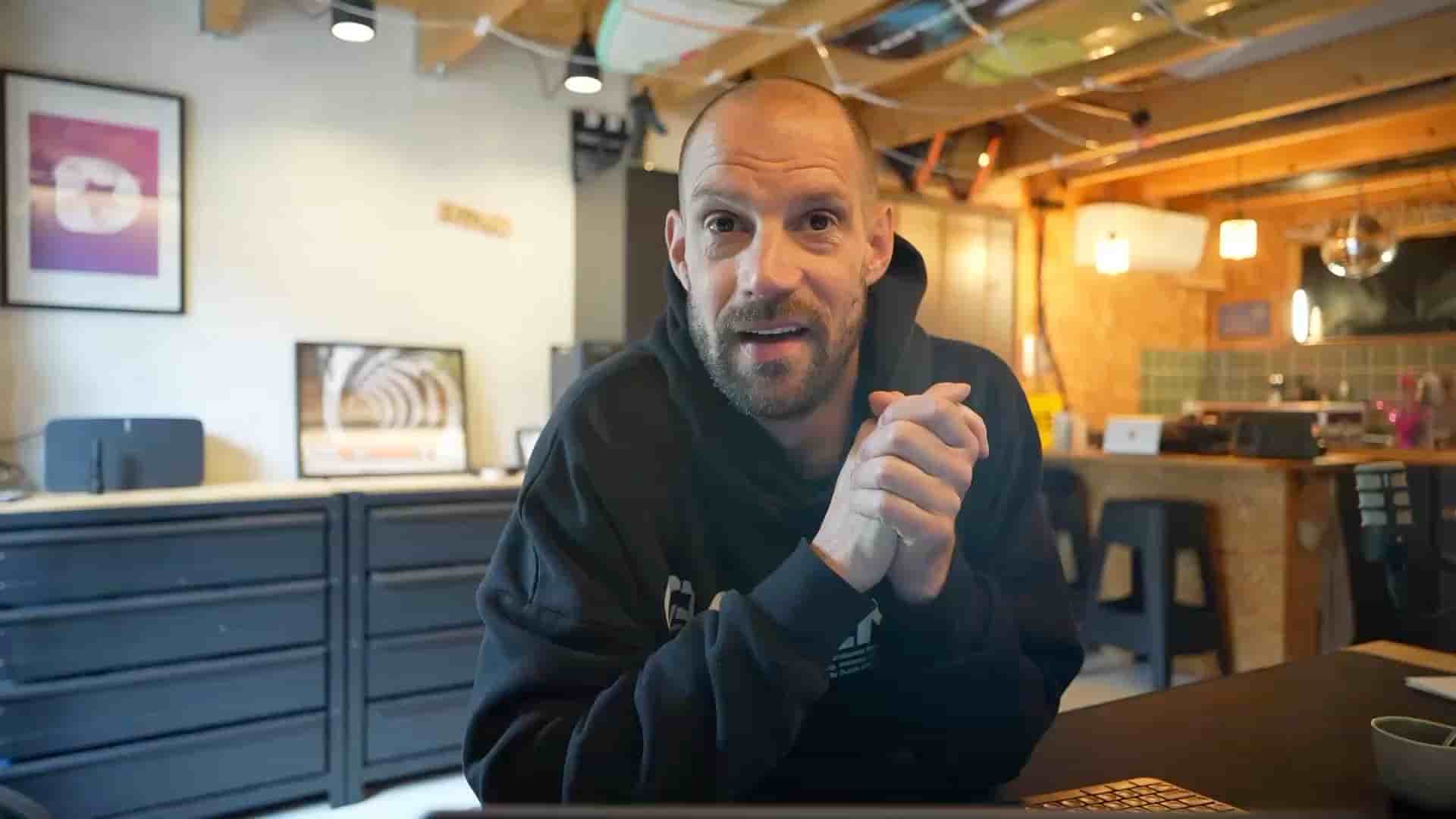
Frank published his first video podcast to Apple Podcasts in under 5 minutes using Subwave's RSS feed. You need three things: a Subwave account, some content, and an Apple ID.
Publishing a podcast always felt more complicated than it needed to be. You record the thing, then you have to figure out hosting, syndication, RSS feeds, and a half-dozen other steps before anyone can actually listen. I finally got around to it, and it took me just over five minutes start to finish. I'm genuinely a little embarrassed it took me this long.
The whole process comes down to three things: a Subwave account (free), some content you've already recorded, and an Apple ID. That's it. If you have an iPhone, you almost certainly have the third one already.
There's no more excuse not to publish your podcast on a big platform.
Once you have content uploaded to your Subwave channel, go to your account settings and open the channel you want to syndicate. Click Manage, and you'll find an RSS URL right there on the page. Mine looks like subwave.app/@femous/feed. Copy it.
While you're on that screen, it's worth filling in a couple of optional fields: the category (I put mine under Technology) and your contact email. Subwave also pulls your channel description and cover art automatically into the podcast feed, so whatever you've already set up there carries over. No extra work.
Subwave generates the RSS feed. You just copy it and hand it to Apple.
Go to Apple Podcasts Connect in any web browser — this works on Windows too, it doesn't have to be a Mac. Sign in with your Apple ID, click the + icon, select New Show, then choose Add a show with an RSS feed. Paste in the URL you copied from Subwave, click Add, and you're done.
Apple pulls the show details, description, and episode list directly from Subwave. Once approved, every piece of content you've published gets its own full-screen card in the Podcasts app. All 13 of my videos showed up, including a 40-minute Dutch-language podcast I recorded with a friend.
"I think this video is probably longer than it will take you to publish a podcast."
One thing I didn't expect: this works for both video and audio content. Video podcasts are fully supported. Whatever you upload to Subwave, whether it's a straight audio recording or a video file shot with Detail or your iPhone, comes through on Apple Podcasts in the right format.
Searching for my channel name on my iPhone and seeing it appear in the official Apple Podcasts app a few minutes after submitting it still feels a bit wild. The whole login step for Apple Podcasts Connect took me under 30 seconds.
If you've been putting off getting your show onto a major platform because the setup seemed like a project, this is the walkthrough that proves it isn't. Record something, upload it to Subwave, copy one URL, paste it into Apple. Happy creating.