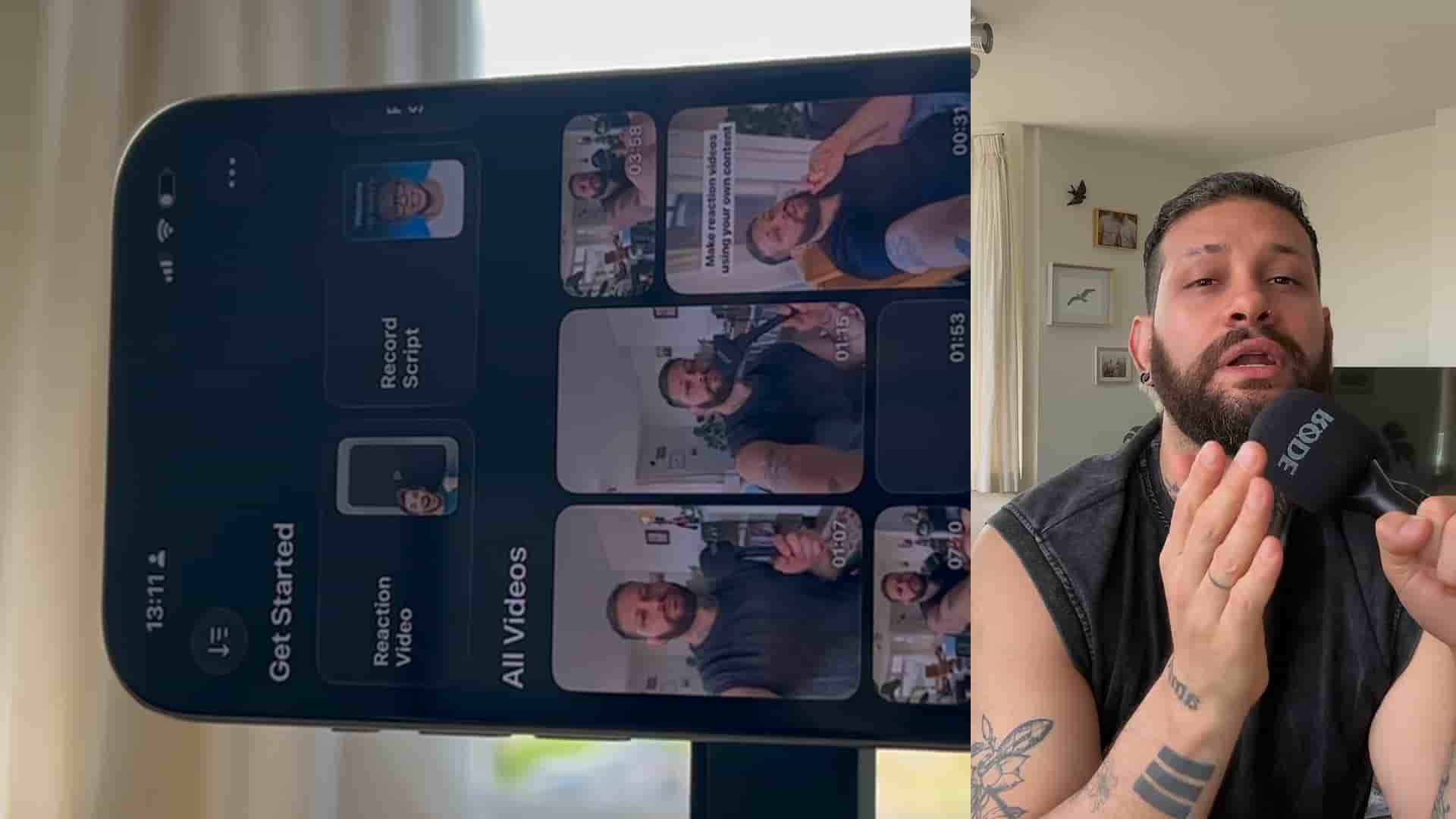
A step-by-step guide to recording, editing, and polishing a slide presentation video with you on screen — all from your phone using the Detail app.
Most people treat their slide decks as a finished product. They export a PDF, attach it to an email, and hope someone reads it. The smarter move is turning those same slides into a video with you on screen — and you can do the whole thing from your phone in one sitting.
The workflow runs through Detail, and it is simpler than it looks. Here is exactly how to do it.
Start with whatever you already have: PowerPoint, Keynote, or Canva. Export it as a PDF and send it to your phone. That is the only prep work required.
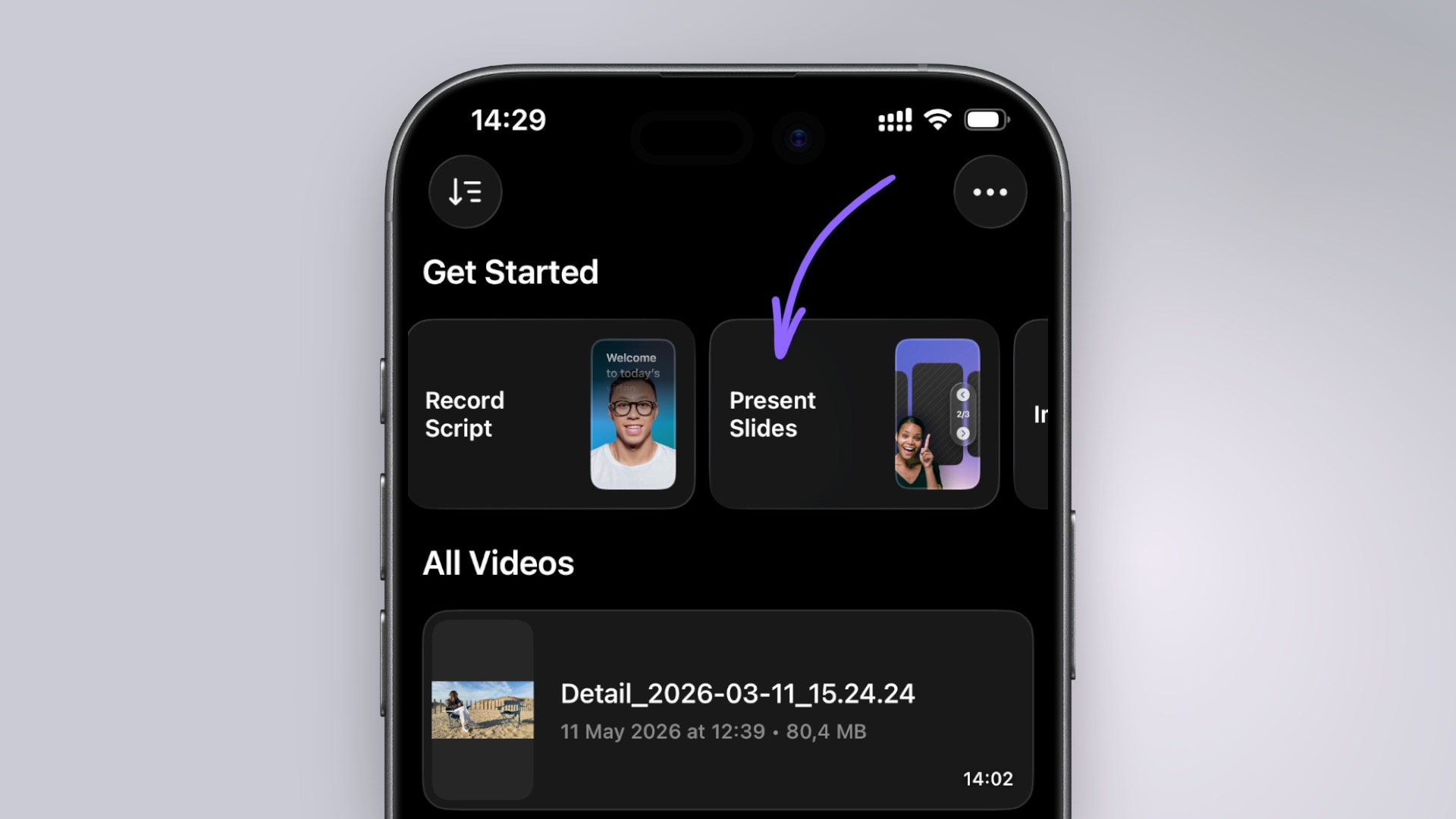
Open Detail and tap the shortcut Present Slides. You will see two import options: Photos (if your slides are already images) or PDF from Files. Tap PDF from Files, find your file, tap Open, and give it a few seconds to load. Your slides will appear in the background with you in a picture-in-picture window, background automatically removed. No setup needed — it already looks clean out of the box.
You just turned a presentation into actual content using only your phone.
Before you hit record, use the built-in teleprompter. Paste your script and you can read while recording. It removes the pressure of memorizing your talking points and keeps your pacing tight.
When you are ready, tap record and present your slides as you normally would. Use the arrows at the top to move between slides. If you stumble, just pause and keep going — mistakes are easy to fix in the next step, so do not let them derail you.
Once you stop recording, Detail drops you straight into a timeline where each slide is its own clip. Scroll through, find anything you want to cut, split the clip, and delete it. Trimming mistakes takes seconds. That is the entire editing step.
Each slide becomes its own clip — so editing a presentation video is as simple as splitting and deleting.
With your clips in order, tap any clip and go to Layout. You can choose from picture-in-picture, circle crop, split screen, or the 70/30 split. For picture-in-picture and circle crop, you can reposition and resize yourself by pinching the screen. Once you have the layout you want, tap Apply to All Clips so it stays consistent across the whole video.
Next, tap Overlay to add finishing details. Add a title card for your presentation, then customize the font, color, and position. The default dissolve animation already looks polished, but you can swap it out under the Animation settings. If you want to call attention to something specific on a slide, use the Draw overlay to sketch or circle directly on screen with your finger.
Tap Captions and let the app generate them automatically. Once they are ready, tap any caption to adjust the style, then apply it to all clips for consistency.
For music, you have two options. Copy a link from any video online, paste it into Detail, and it will pull the audio. Or browse the built-in royalty-free tracks that are already cleared for any use. Either way, the app loops the song automatically to match your video length. All you need to do is lower the volume so it sits under your voice without competing with it.
"It's way more engaging and honestly a much better way to share your ideas."
A static slide deck asks the audience to do all the work. A video with you on screen explaining each slide changes the dynamic entirely — it is more personal, more watchable, and far more likely to actually get consumed. The tools to make it are already in your pocket, and the slides you already built are the starting point. The only thing left to do is record.