Learn Diego's simple setup for recording professional-looking videos with face and top-down angles using devices you already own.
Diego from Detail recently stumbled onto a video recording setup that he loved so much, he had to share it. After finishing a recording session, he realized he'd found something special: a super simple way to capture professional-looking footage with two camera angles using just an iPhone and iPad.
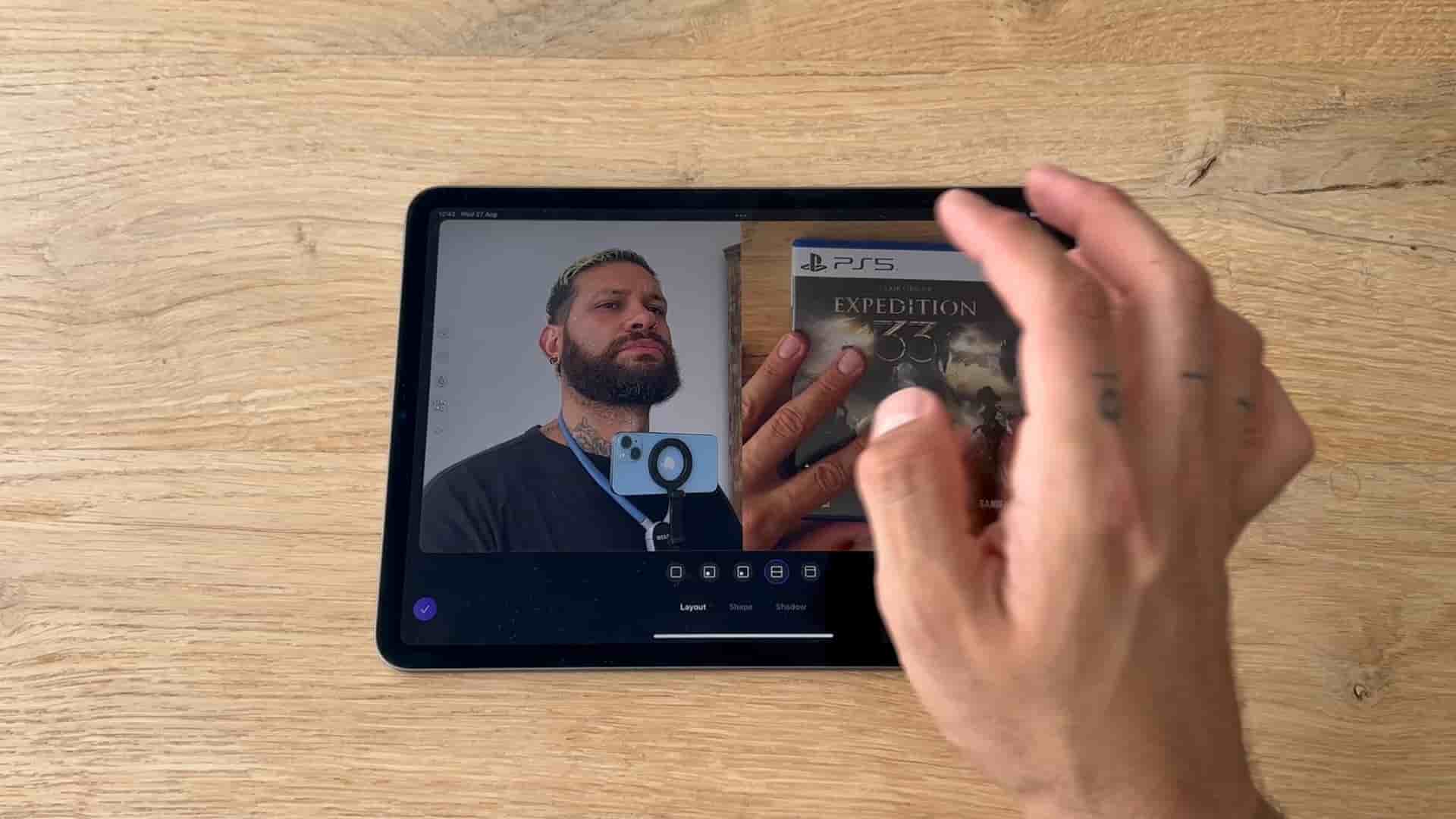
This setup is perfect for product demos, unboxings, cooking videos, or anything where you want both your face and a top-down view of your workspace at the same time. The best part? You probably already have everything you need.
The equipment list is refreshingly short. You'll need two devices (Diego uses an iPhone and iPad, a combo he loves because most people already own them), two tripods (with one important caveat), and optionally, a set of microphones.
For tripods, Diego uses an Atom Tech model that includes a bendable arm to hold the phone pointing down. This feature is crucial for the top-down view. Some tripods have this, some don't, so it's something to look for specifically. For the iPad, he doesn't actually use a dedicated iPad tripod. He just props it up with a regular tripod, letting it sit at eye level. With the iPad, you can get creative. Whatever you have that can position it for an eye-level view will work.
For audio, Diego uses Holy Land USB-C wireless microphones. While microphones aren't a must-have, they're always good to have for better sound quality.
The first step is connecting your devices. Open the Detail app on both your iPhone and iPad, start a new project on each, then tap the three dots at the top and select connect on both devices. Give it a few seconds, and they'll sync automatically.
Next, decide which camera you're using for each device. Diego likes using the selfie camera on the iPad because it allows him to use the teleprompter feature, which he calls a game changer. On the iPhone, he uses the back camera for the top-down shot, which makes positioning much easier.
Once they're connected, zoom out a bit on both previews on the iPad so you can see the full frame and make sure everything looks good.
Don't worry too much about how it looks at this stage. You can adjust the layout and aspect ratios later during editing, giving you plenty of flexibility.
For the top-down shot, mount your phone on the tripod and angle it downward. This is where that bendable arm comes in handy. Diego recommends using whatever zoom length gets you closest to your workspace because that helps you avoid capturing the tripod legs in the frame. You might need to tilt the camera slightly rather than going completely top-down, but that's fine for avoiding those legs.
The beauty of having everything connected to the iPad is that you can monitor how the top-down shot looks from the iPad screen. No need to keep looking at your phone.
Setting up the iPad is straightforward. Position it in front of you at eye level, make sure you look good in the frame, and if you want to use the teleprompter, just tap the teleprompter feature. You're ready to go.
When you're ready to start recording, just tap record on your iPad. Both cameras will start recording simultaneously. To stop, tap from the iPad and both will stop together. If you want to continue recording, just tap record again. It's that simple. You've just recorded your video with two angles.
When you're finished, there's one important step: tap disconnect. After disconnecting, both devices will upload the high resolution version of the video to each device, ensuring your project works with the best quality footage. You may need to tap the arrows icon and select "load high resolution" just to make sure you have the highest quality files.
Once you have your footage, editing is super easy on the iPad. You can use split screen to show both angles simultaneously, or switch to single view to focus on just one shot. To switch to single, tap layout, select single shot, and then in sources, choose which angle you want to use. You can toggle between face camera and top-down shot anytime during editing, giving you complete creative control.
This setup is simple but produces professional-looking results. It's perfect for tutorials, cooking videos, unboxings, or product demos. The ability to seamlessly switch between showing your face and demonstrating something on your workspace opens up countless creative possibilities, all without needing expensive multi-camera rigs or complicated setups. Just two devices you likely already own, a couple of tripods, and the Detail app. That's Diego's formula for creating engaging, dynamic video content.