Learn how to turn a simple idea into a clean, shareable newsletter that reaches your audience automatically in one seamless flow.
You can write, format, and send a newsletter from a single screen on Subwave, no separate email tool, no switching between a writing app and a sending platform. Here's exactly how to set it up, from your first word to landing in your subscribers' inbox.
Before you write anything, make sure your channel is set up. This is where your content lives, and it's how people subscribe to you. Once it's ready, share your channel link with your audience. From that point on, every time you post, they'll receive it as a newsletter automatically.
Go into your channel and tap "New Post." You'll land on the create post screen, where you can upload media like voice notes, record audio, or add video. For a newsletter, though, start from scratch: add your title, then start writing. The editor is built to stay simple, you get what you need without it feeling overloaded.
Add headings to structure your content. Use bold, italic, or underline for emphasis, and bullet points or numbered lists to organize ideas. There's a quote option for highlighting a section, plus support for links and images. That's genuinely all you need for a well-formatted, easy-to-read post.
This is really all you need to create a well formatted, easy to read article.
Before you go too far, it's worth setting up your writing style. Go into settings and tap "Edit" on Writing Style. Paste in something you've already written, an article, a past post, anything in your own voice. Subwave analyzes it and learns your tone, so the AI-generated text actually sounds like you instead of something generic. Confirm it, and head back to your post.
Once you're happy with the writing and formatting, tap "Next." Subwave generates a short description and a newsletter version that summarizes your post, you can edit this, adjust the tone, or leave it as is. Choose when to publish, and set your visibility: subscribers only, or unlisted so only people with the link can access it.
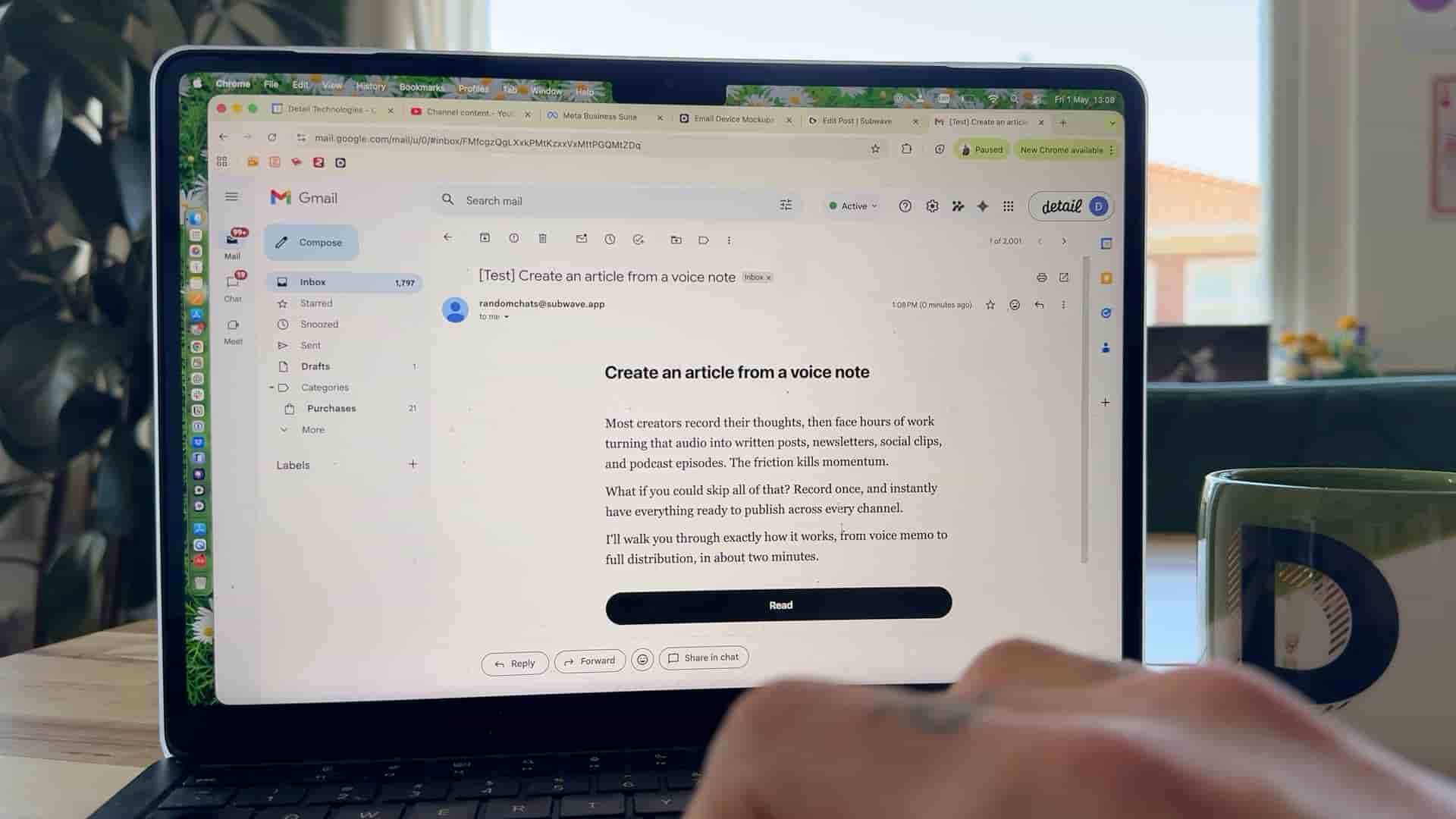
Then flip on "Send as newsletter." When enabled, Subwave emails your subscribers automatically the moment you publish, so every post isn't just going live on your channel, it's also landing directly in your audience's inbox.
Once everything looks good, go ahead and publish that.
That's it. Your post is live on your channel, and your subscribers already have it in their inbox. Instead of writing in one place, formatting in another, and sending from somewhere else, it all happens in this one flow. You write once, and you publish and grow your audience at the same time.