Learn how to create professional reaction videos on your iPhone in minutes using Detail's simple workflow for YouTube, TikTok, and Instagram content.
I get asked all the time about the easiest way to create reaction videos on mobile, and I'm excited to show you exactly how I do it using just an iPhone. The whole process takes minutes, and you can react to content from YouTube, TikTok, or Instagram without any complicated editing.
The first step is choosing the video you want to react to. Whether it's on YouTube, TikTok, or Instagram, the process is identical. Find the video you want to use, tap the share button, scroll over to "more," and select Detail from the options. This opens the Detail app directly.
Once you're in Detail, select "reaction video." The app automatically uploads and imports your chosen video directly into the reaction layout. It's that simple. No downloading, no file management, just a seamless import process.
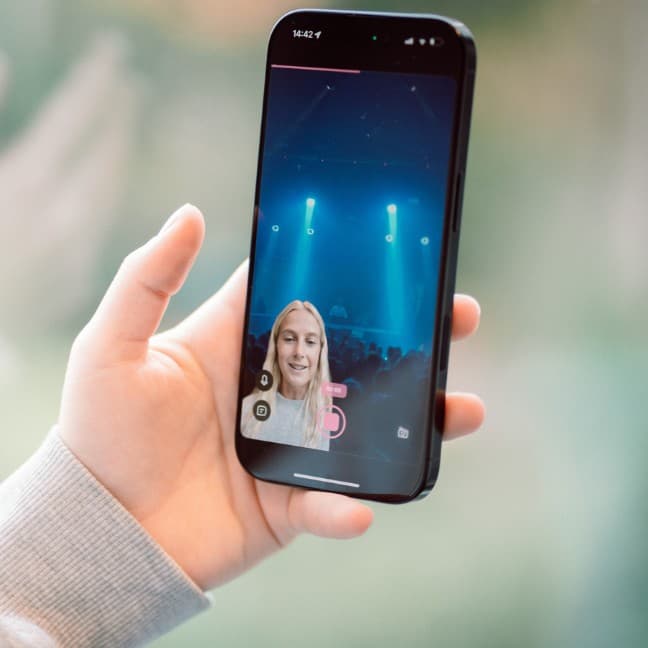
When you enter the reaction layout, you'll see the default setup. The original video plays in the background while you appear picture in picture with a green screen booth. This gives you that professional reaction video look right out of the box.
By default, the video plays in the background and you will appear picture in picture with a green screen booth.
The beauty of this setup is how intuitive it is. You can tap play and pause to scroll to any part of the video, which means you can start your reaction at exactly the moment you want. Once you're ready, hit record and start reacting.
After you've recorded your reaction, Detail gives you several layout options before exporting. Tap the layout button and you'll see choices like split screen, 70/30, bubble, or you can stick with the default style. Each layout gives your reaction video a different feel, so pick whatever matches your style.
The green screen mode is flexible too. If you decide after filming that you want to show your real background instead, just tap "mask" and it switches off the green screen effect. Tap it again to bring the green screen back.
Want to customize your background? Tap the background option and you can swap in a solid color from the preset options, or upload a photo from your camera roll. This gives you complete control over the aesthetic of your video.
The overlay feature lets you add text, images, or even draw directly on the video. You can adjust the duration of any overlay by manipulating it in the timeline, making it easy to emphasize specific moments.
Audio controls are straightforward. Tap the audio button to adjust the volume of the background video or your own voice. There's even an enhance feature that removes background noise from your voice, which is a game changer if you're filming in less than perfect conditions.
Once you're happy with everything, tap export and your video is ready to share. That's it. The entire workflow from import to export can happen in minutes, all on your iPhone.
This method has completely changed how I approach reaction videos. No more complicated desktop editing, no more syncing issues, just a clean, simple process that works. Whether you're creating content for YouTube, TikTok, or Instagram, this workflow gets you from idea to published video faster than any other method I've tried.