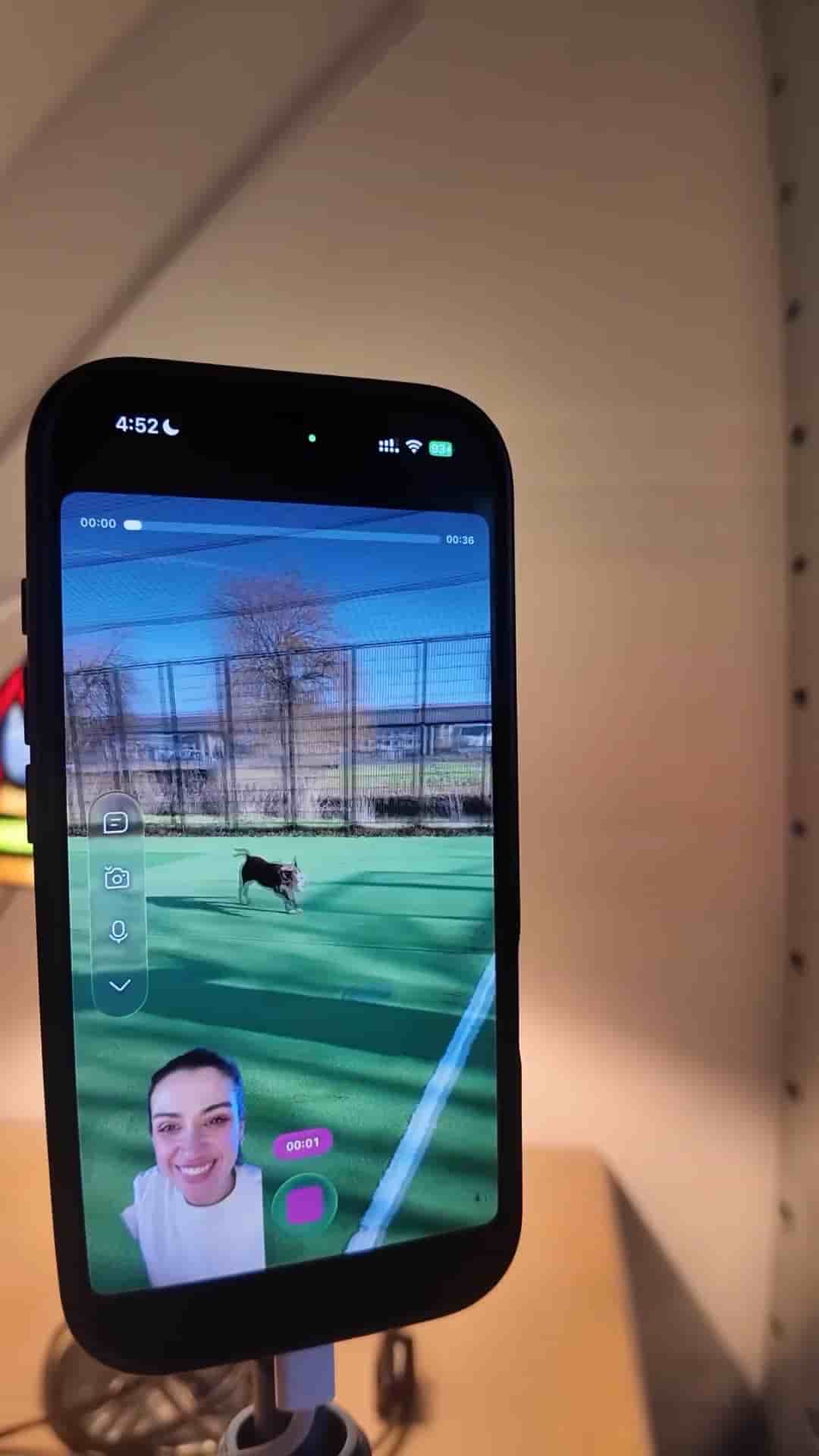
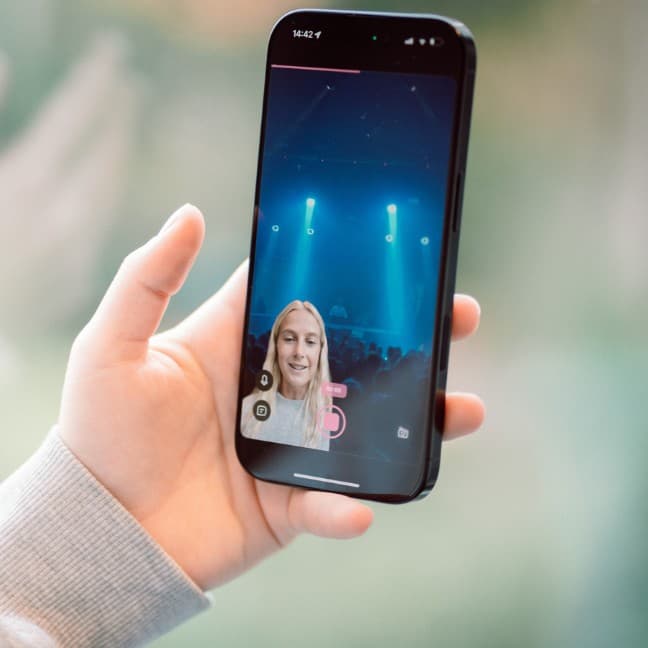
Detail's reaction video shortcut on iPhone handles the layout automatically so you can import a clip, record your response, and adjust framing all in one place.
Reaction videos are one of the most engaging formats on social media, and you can put one together on your iPhone in a few minutes using Detail.
Open Detail and tap the reaction video shortcut. Import the video you want to react to, and Detail automatically opens a new project with the reaction video layout already configured. No manual setup, no fiddling with layers.
Detail opens a new project with the reaction video layout ready to go.
Hit record and start sharing your thoughts over the imported clip. The layout does the work of keeping both videos visible at once, so you can focus on what you're actually saying.
After recording, head to the layout section to fine-tune how everything looks. You can resize your shot and drag it anywhere on the screen to place it exactly where you want. If the default framing isn't working, switch between layout options: screen, picture-in-picture, or circle mode.
"Switch to screen, picture in picture or circle mode."
That flexibility matters. Different content calls for different presentations, and being able to switch modes after the fact means you're not locked into a decision you made before you saw how the footage actually looked together.
The whole process runs in one app, start to finish: import, record, resize, reposition, and export. For anyone making reaction content regularly, cutting out the multi-app juggling act alone is worth the download.