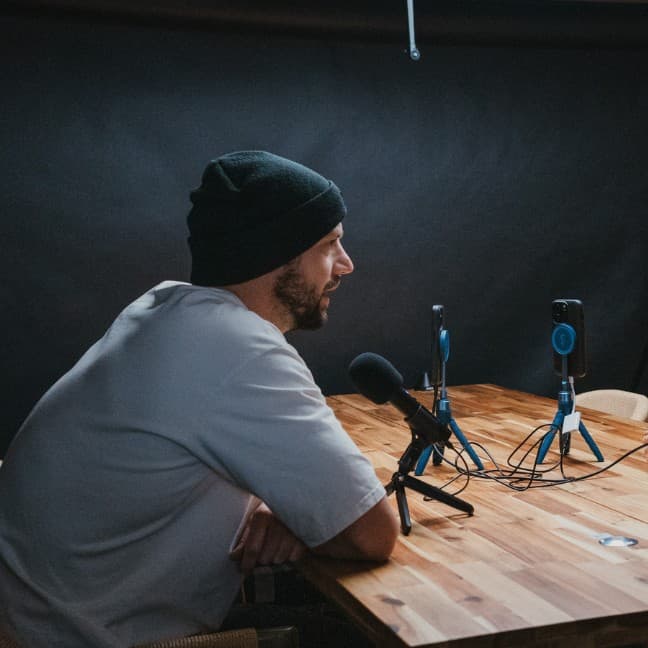
Learn how to transform long-form podcast videos into polished episodes plus social media clips in under five minutes, all from your iPhone.
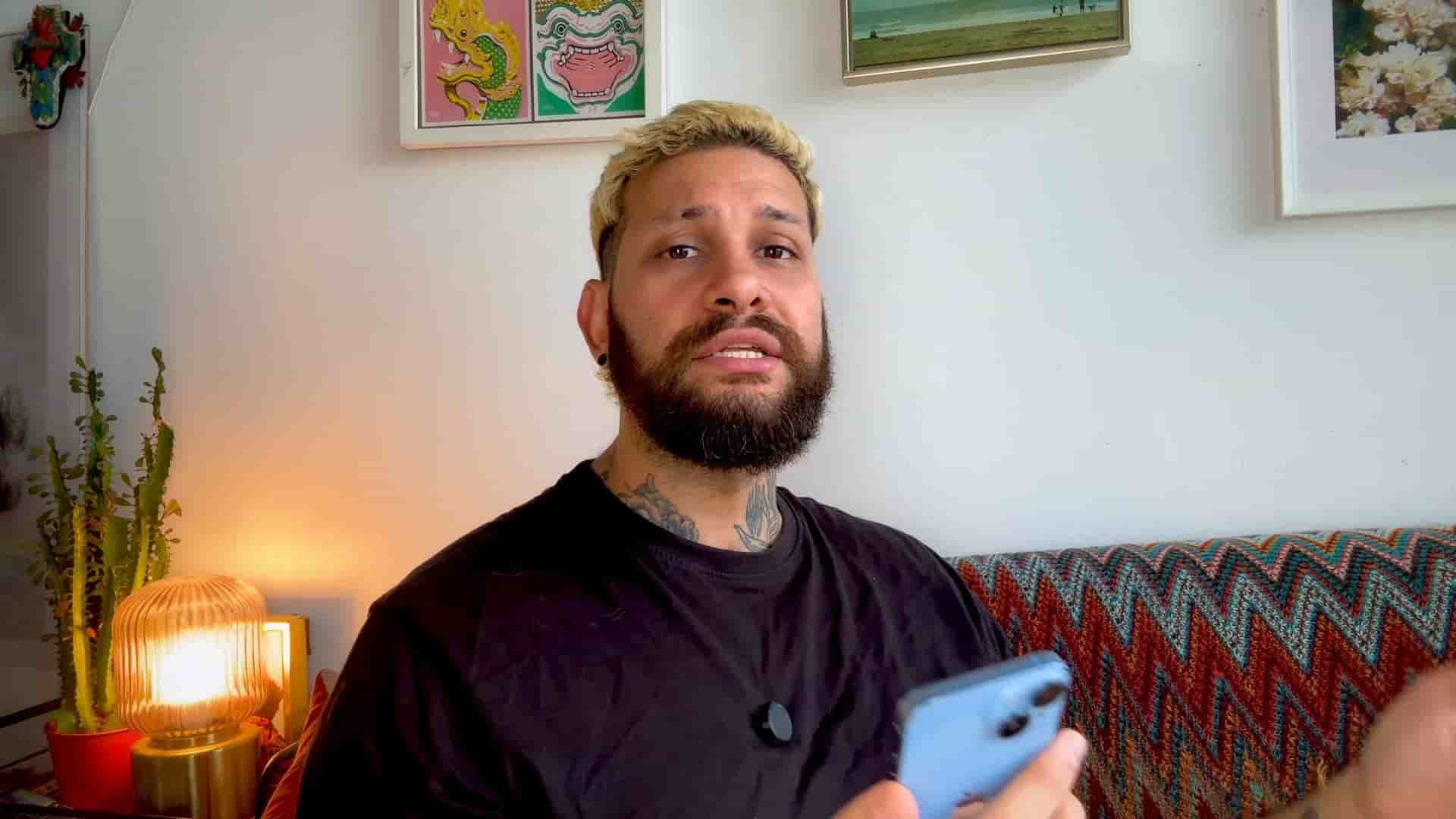
If you're tired of spending hours editing your podcasts, I've got something that's going to change your workflow completely. I'm going to show you how to turn your long video podcasts into a full, finished episode, plus create short clips for TikTok, Reels, and Shorts, all under five minutes. And yes, I'm doing the whole thing straight from my iPhone, editing right here on my couch.
First thing, open Descript and bring in your video. If you film your podcasts inside Descript, your project is already there and ready to edit. If you've recorded somewhere else, just import your video into Descript.
Step one is working on the long-form video first, so you're going to pick the aspect ratio. Tap aspect and then choose from vertical, square, or landscape. For this podcast, I'm going to export the full long-form episode in landscape for YouTube. But we will also create vertical short clips later.
Step two, you're going to tap AI Auto Edit. This will analyze your whole video. It automatically detects who's talking and lets you frame the right person. Once it's done, you're going to see clips, and then you're going to select the person who's talking and frame them and zoom in. By default, you're going to get a smooth transition between speakers, but you can also adjust this transition in the transition step or remove it altogether.
Step three is to clean up all those awkward pauses. Tap the transcript icon, then you're going to hit silences. Descript highlights all the dead air and with one tap, you can delete all silences instantly.
Step four, you're going to fine tune your framing. Once the silences are gone and the main cuts are done, your podcast is already looking clean, but you can fine tune a few moments if needed.
Step five, now let's add captions. Since Descript already analyzed the audio for the transcript, your captions are actually ready to go. Just tap captions, pick your style, font, position, and color.
Once the silences are gone and the main cuts are done, your podcast is already looking clean.
Step six, at this stage, your full podcast episode is ready to export. This will give you a complete, ready to upload video for YouTube with all the cuts, captions, and framing already applied. You don't need to edit any further.
Step seven, now that we have the long-form video ready, we're going to be working on creating some short clips for TikTok, Reels, and Shorts. The first thing you're going to do is change the aspect ratio to portrait. Then I like to switch to split screen, which keeps all speakers visible. If you like the layout, what you can do is save that layout as a preset, and then you can apply to all, and this will apply for the whole project.
If you want to switch to a single angle for key moments, all you have to do is go to that point in the timeline, tap layout and choose single angle. From there, you can zoom in and adjust the framing however you like.
Step eight, now I want to add some background music to my short clips. You can easily grab any song from YouTube, TikTok, or Instagram. Just find that song that you want, copy the link, then head back to Descript, tap the music icon and paste that link. All you have to do is adjust the volume and section you want to use and then confirm. The great part is that you only need to add the song once. Descript automatically loops the song, so you don't need to adjust the music for each short clip individually.
Step nine, finally, it's time to create those short clips and export them. Head over to the transcript, where chapters are automatically suggested based on the topics of your podcast. To export a chapter, you're going to long press a sentence and tap select. Tapping a chapter will select the entire section. If there is anything you don't want in this short clip, just deselect it. You can preview the clip, add more, combine multiple sections, or you can actually delete parts by swiping and deleting. Once your selection is done, just tap share, then save it and this will be saved to your camera roll.
Repeat this process to create as many short clips as you want. And here's the thing: if you want to speed things up even more, you can simply go to export, tap media, and AI will automatically suggest ready to go short clips. Just select the one that you like, preview it, and then just hit save and you're done.
In under five minutes, we turned our full podcast into a long-form episode and created short clips for social media.
That's it. All your editing is done and we only used our iPhone. In under five minutes, we turned our full podcast into a long-form episode and we created short clips for social media. The beauty of this workflow is that it removes all the friction that usually keeps podcasters from being consistent with their content. No more excuses about not having time to edit or needing to be at your desk with expensive software. Everything you need is right in your pocket, and the AI does the heavy lifting for you.