Learn the exact gear and techniques I use to create professional video tutorials, from iPhone basics to multi-camera setups with external audio.
I get asked all the time about what gear I use to make video tutorials for Detail. The truth is, you don't need much to get started, but there are some key upgrades that make a massive difference. In this guide, I'm going to show you exactly what I use, step by step, from the simplest iPhone setup to a full multi-camera rig with professional audio.
I'll be completely transparent here. No secrets, no gatekeeping. Just the actual process I use every single day to create content. Whether you're just starting out with an iPhone or ready to level up with professional gear, there's something here for you.
Let's start with the basics because honestly, you can create great content with just your iPhone. Right now, I'm recording in our little studio space that we use for podcasts and tutorials. It's nice, but the setup I'm about to show you works anywhere.
The first issue every creator faces is this: the rear camera on your iPhone is significantly better than the selfie camera. But when you flip your phone around to use that better camera, you can't see what you're filming. You're literally staring at the back of your iPhone. So how do you solve this?
This is where having a second device changes everything. I use an iPad Air 2025, but this works with any iPad, even older models. I also use an iPad Pro that's 8 years old, and it works perfectly fine. You could even use a second iPhone.
Here's how it works in Detail:
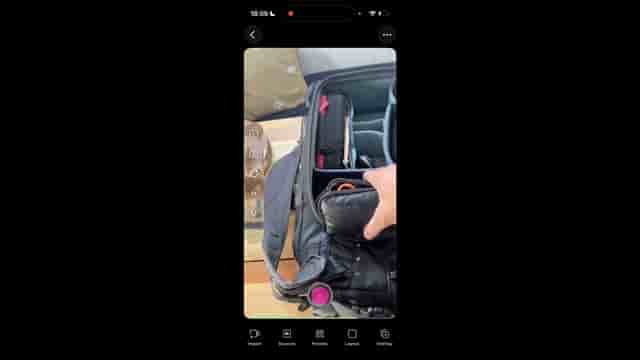
Open Detail on both devices and hit the connect button on each one. You'll get a split screen view initially, but tap into the layout settings and swap the sources. Now your iPad is displaying what your iPhone's camera sees. Tap to rotate from the selfie camera to the rear camera, and suddenly you have a high-quality image that you can actually monitor.
This setup alone could end the tutorial right here. You now have the highest quality camera from your iPhone with a proper monitor to see what you're doing. You can place the iPad where you need it, frame your shot properly, and record professional-looking content.
This is basically the best way to utilize your iPhone and iPad as a monitor. You don't need anything else to make beautiful content.
The internal microphone on an iPhone works pretty well, but external audio takes things to the next level. I use a HolyLand wireless microphone set, but there are tons of cheap options on the market that work perfectly fine.
The HolyLand set comes with two microphone units and receivers. What makes it especially useful is that these microphones record internally as a backup, which has saved me more than once. The receiver plugs directly into the USB-C port of your iPhone or iPad. When you plug it in, you'll see a USB icon in Detail indicating the wireless microphone is connected.
Now you're using the professional rear camera of your iPhone and professional audio, all being monitored on your iPad. This is already a fantastic setup for creating tutorials, product reviews, or any content where quality matters.
If you want to take it even further, this is where a proper camera comes in. I use a Sony a7C2, a really nice compact full-frame body. The reason I chose Sony is compatibility, but many camera brands work as webcams now.
The setup is remarkably simple. I mount the camera on a small tripod with an arca plate, then connect it to the iPad with a single USB-C cable. That's it. One cable running from the camera directly to the iPad, and suddenly your image quality jumps dramatically.
You can still use Detail to record and edit, but now you're inputting a much higher quality signal. You can play with exposure, switch lenses, zoom in, and create that professional look that really makes content stand out. When you compare the iPhone to the professional camera side by side, the difference is significant.
The HolyLand system has a clever solution for this. They make a camera adapter that sits in the hot shoe of your camera. The wireless microphone receiver clicks directly into this adapter, which sends the audio through the hot shoe connection, down the USB-C cable, and into the iPad.
So you have a completely wireless microphone on your person, transmitting to the camera, and that audio is being sent to the iPad along with the video signal. No extra cables needed between the microphone and your recording device.
If you don't have a HolyLand adapter or you're using a different camera brand, there's a simple backup solution. The receiver also has a 3.5mm line out, so you can use a standard audio cable to connect it to your camera's microphone input. This works with Rode microphones, HolyLand, or any wireless system with a 3.5mm output.
Once everything is connected, you can level your iPad to monitor your professional camera, add your iPhone as a second angle if you want, and have professional audio running wirelessly. You can do split screen views in Detail, switch between cameras, and when you press record on one device, it can trigger recording on the other.
This gives you the flexibility to roam around, show overhead shots, demonstrate products, or switch angles, all while monitoring everything from your iPad. The editing happens right there in Detail, so you're not dealing with massive file sizes from recording internally on the camera.
There's literally no excuse not to make great content. With the right equipment, you just need one cable to have a professional camera and audio connected to your iPad.
You don't really need external devices to make a video look good, but they help. Start with what you have. If that's just an iPhone, use the rear camera with an iPad as a monitor. If you can add external audio, do it. The jump in quality is worth it. And if you're ready for a professional camera, the setup is simpler than you might think.
The key is understanding that great content isn't about having the most expensive gear. It's about knowing how to use what you have effectively. I've shown you everything from the simplest setup to my full professional rig, and the techniques apply at every level.
Happy creating, and I'll catch you on the next one.