Detail now supports recording directly to external SSDs, solving storage issues for creators and making file transfers easier than ever.
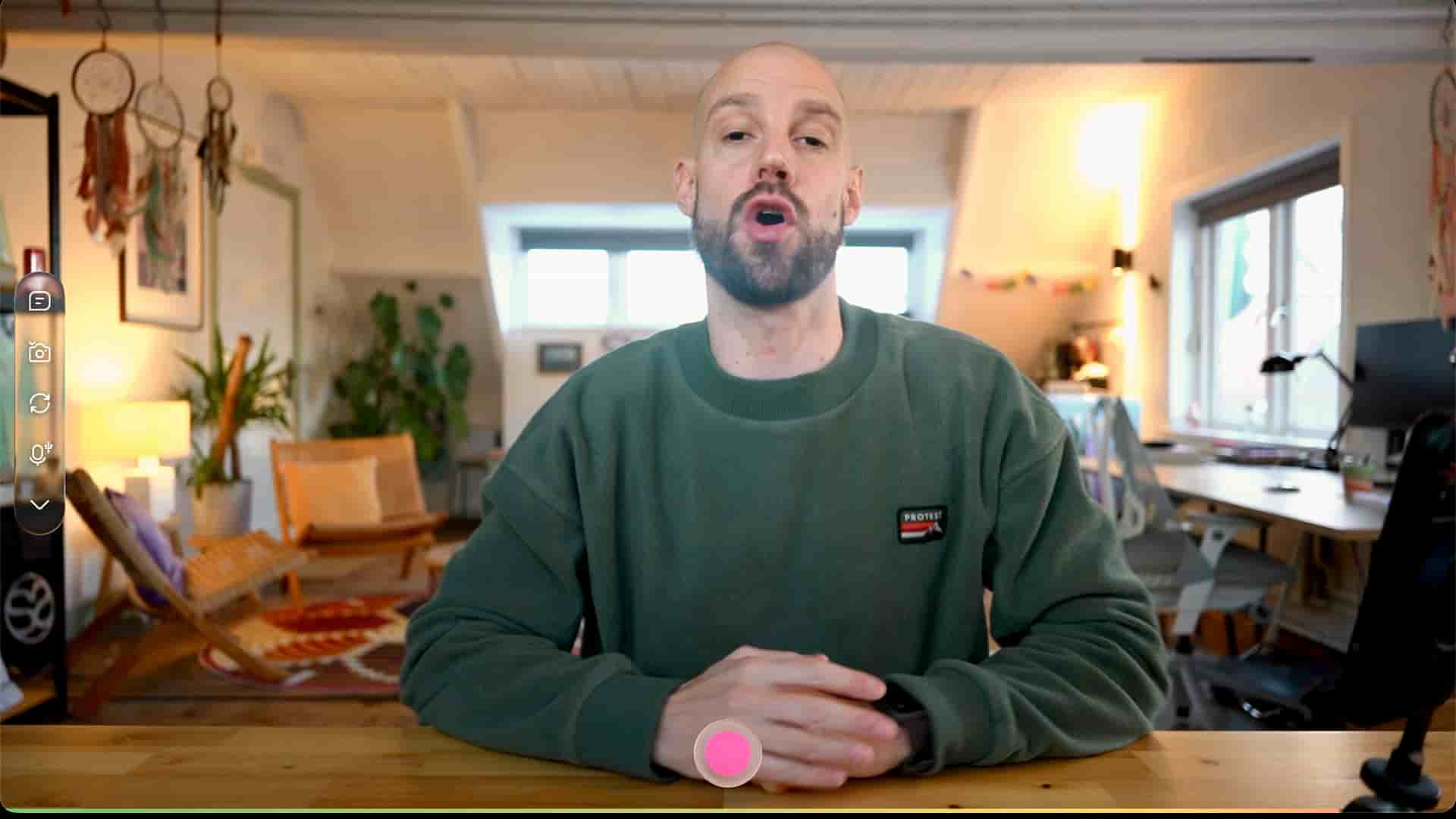
Hey, it's Frank from Detail, and I'm excited to share something that's going to change how you think about mobile recording. With our latest update, you can now record directly to your SSD. No more running out of iPhone storage mid-recording, no more paying for expensive iCloud upgrades, and no more choosing between keeping files or deleting them.
I'm using the Samsung T9 2TB here, and let's be honest—not many people are dropping thousands on a 2TB iPhone. My phone is constantly running out of space because I record so much. Sure, I've been uploading to iCloud to free up local storage, but that comes with its own costs. Now you can bypass all that by recording straight to any external SSD. There are even some pretty cool rigs out there that let you mount your SSD to the back of your phone and power it at the same time. For long recordings, this update is a game-changer.
The only requirement is an iPhone or iPad with USB-C support. Once you've got that, the setup is straightforward. Connect your SSD—you'll see the LEDs start flashing when it's connected—and you're ready to go.
Here's an important warning though: be cautious about your connection. If your SSD disconnects while recording, you could lose your footage. This is critical to remember, especially during long recordings. Make sure your SSD is securely mounted and won't move around or get accidentally unplugged.
To configure Detail to record to your external drive, head to your library and tap on settings. Under storage, you'll find the option to switch to an external drive. I like to stay organized, so I create specific folders rather than just dropping files on the root directory. For example, I'll create a "2026 Video" folder to keep everything tidy.
Once you select your folder, Detail will automatically set that as your default recording location. From there, you can start a new project and begin recording directly to your SSD.
If this thing disconnects, your recording might be lost. So mount it, make sure the SSD is not going anywhere.
Recording to an SSD offers some serious advantages beyond just saving space. If your files get large, transferring them becomes incredibly simple—no upload required. Even with a slower internet connection, you can hand over files to someone else for editing. Want to record on your iPhone but edit on your iPad? Just plug the SSD into your iPad and you're good to go.
What about all those older projects taking up space on your iPhone? You don't want to upload them to iCloud if your storage is full or your iPhone is running low on space. Detail makes it easy to move them around.
In your library, long press on any project and hit select. You'll see a new menu at the bottom with options to move the project to your device, iCloud, or external storage. If you select iCloud, you'll get a confirmation prompt, and then the project will upload. With a decent internet connection, even larger projects only take a couple of minutes.
Once a project is in iCloud, you can long press it again and move it to your SSD or external storage. This frees up valuable space in both your iCloud account and your iPhone, giving you much more flexibility in how you manage your footage.
You can select multiple projects at once and batch-move them to your SSD. This is especially handy for those longer podcast recordings or any content that you want to archive but keep accessible. When you offload a project from iCloud to your SSD, you'll see a small icon at the bottom of the project thumbnail indicating it's been downloaded and stored on the external drive.
This feature is all about keeping things tidy and giving you control over where your valuable content lives. No more storage anxiety, no more choosing between keeping files or making room for new recordings.
If you have any questions about external storage in Detail, drop a comment. Happy creating, and I'll catch you on the next one.