Detail Capture brings professional screen recording to Mac, seamlessly connecting with Detail iOS for a complete content creation workflow.
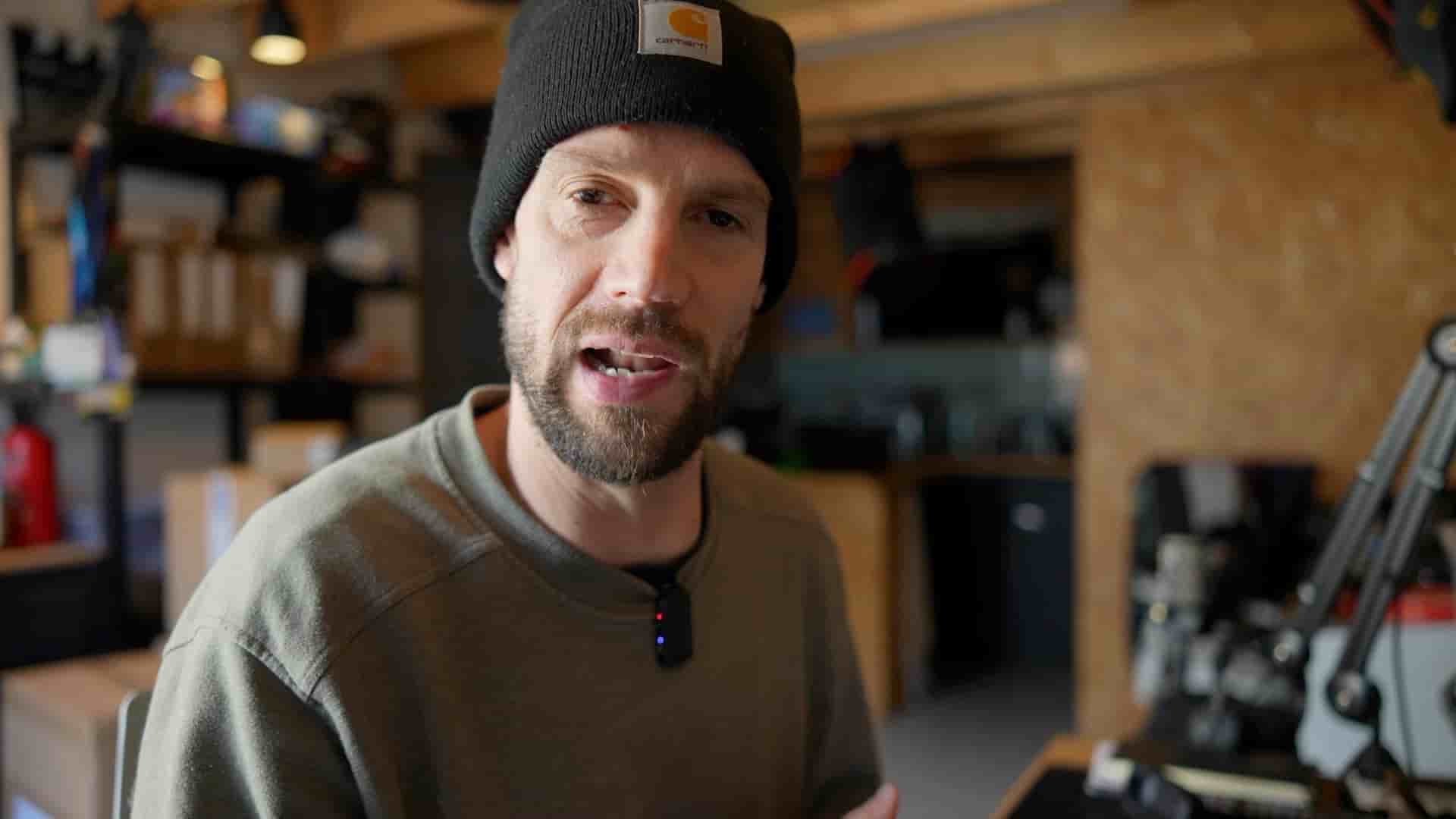
I'm more excited than ever to share something I've been waiting to talk about: Detail Capture. This is the Mac companion to Detail for iOS, and honestly, I'm not even sure if it's the bigger sibling or the baby brother. You can decide that for yourself once you see what it can do. What I do know is that this thing runs on your Mac, works incredibly well with Detail for iOS, and takes screen recording to the next level.
I'm running this on my daily driver, a Mac Studio. Since it doesn't have a built-in webcam, I'm using a pro camera for this demo, but that's actually part of what makes Detail Capture so versatile.
The interface is pretty simple, but extremely effective. Click on the preview and you'll see whatever camera you have connected. That could be a pro camera like mine, a standard webcam, or even your iPhone using Continuity Camera. And here's something cool: you can also use OBS if you have a plugin, or Detail Connect (more on that in a second).
The screen recording feature is straightforward. You can record any screen, which makes it perfect whether you're in development or demoing your website. It just works. But of course, you probably want to record yourself too. Tap the camera option and boom, you've got a split screen setup. Now you can demo and record simultaneously.
Here's where things get really next level. Let's say you want to screen record yourself, but you also want to use Detail iOS at the same time. You can do exactly that by clicking on Detail Connect.
I'll show you what I mean. I open Detail on my iPhone, create a new project, tap in the corner, tap Connect, and there you go. Maybe you want to use the rear camera (sorry for the mess in my workspace). Switch to the pro camera and look at that. This is already looking pretty sick.
You have your workstation, this can be your MacBook Pro or MacBook Air, it doesn't really matter. And your iPhone, and look at that, I think this is the way to go.
You can demo, you can split screen record. It's free to try out, so I'd definitely recommend downloading it. But we're not done yet.
Let's say I want to demo my iPad. If you have a USB cable and plug it into your iPad, it will pop up as a screen source. Select the right source, tap on screen, and then choose your iPad. In my case, it's my iPad Air.
Look at that. I can demo whatever is happening on my iPad and it's so simple. I just press record and easy does it. Now I'm recording whatever is happening on my iPad screen. I can do my presentation, open Detail, load a project, make cuts, whatever I need. There are a lot of screen recorders out there, but come on, it is not usually this easy.
Now here's the nice part. When your recording is done (I recorded 45 seconds in my demo), your recording shows up in your library. You can actually change the layout after the fact. Switch to a split screen, do picture in picture, whatever works best for your content.
But here's my favorite feature: you can share this project to your phone. Just airdrop it to your iPhone and then edit it in Detail iOS with all the AI superpowers. Isn't that nice?
Like I said, I'm super excited because I think I'm going to use this app a lot. Actually, our developers and I worked very closely to make this because we need it as well. So we're going to use this app constantly.
The workflow just makes sense. Record on Mac where you have more screen real estate and better control, then seamlessly move to your iPhone for the powerful AI-driven editing features that Detail iOS is known for. It's the best of both worlds.
If you're creating content that involves screen recording, especially if you're already in the Detail ecosystem, this is a must-try. Happy creating, and I'll catch you on the next one.