Learn how to shoot professional multi-angle unboxing videos using your current iPhone and an old one—no expensive camera gear required.
So here's what happened: I was all set to record an unboxing tutorial with my pro camera and iPad. Everything was ready to go. Except for one small problem—I forgot to charge any of the batteries. Classic mistake, right? But instead of scrapping the whole thing, I realized I could actually show you something even more practical: how to create a professional multi-angle unboxing video using just two iPhones.
And before anyone comments that using two iPhones isn't economical, hear me out. I like gear, but I also like staying current with my phones. So I upgrade regularly, which means I always have my old iPhone sitting around. For this setup, I'm using an iPhone 16 Pro (not even the latest model) and my old iPhone 14 with the lightning connector. If you're someone who upgrades occasionally, you probably have a similar situation.
For audio, I'm using a HolyLand recorder connected to my iPhone 16 via USB-C, with a HolyLand mic attached. It's a solid setup that ensures clear sound quality without breaking the bank.
The mounting system is where things get interesting. I use Quad Lock cases on both phones because they're incredibly sturdy and make mounting dead simple. My old iPhone 14 goes on a Manfrotto tripod that extends to the side for that perfect top-down shot. This is important: when you extend a tripod arm to the side, make sure the opposite leg is less extended to maintain balance. You really don't want your phone crashing down onto your setup.
When you extend a tripod arm to the side, make sure the opposite leg is less extended to maintain balance. You really don't want your phone crashing down.
The recording iPhone 16 sits on a smaller baby tripod positioned at a nice angle. Between these two angles—the front-facing shot and the top-down view—you get that professional multi-camera setup that makes unboxing videos so engaging.
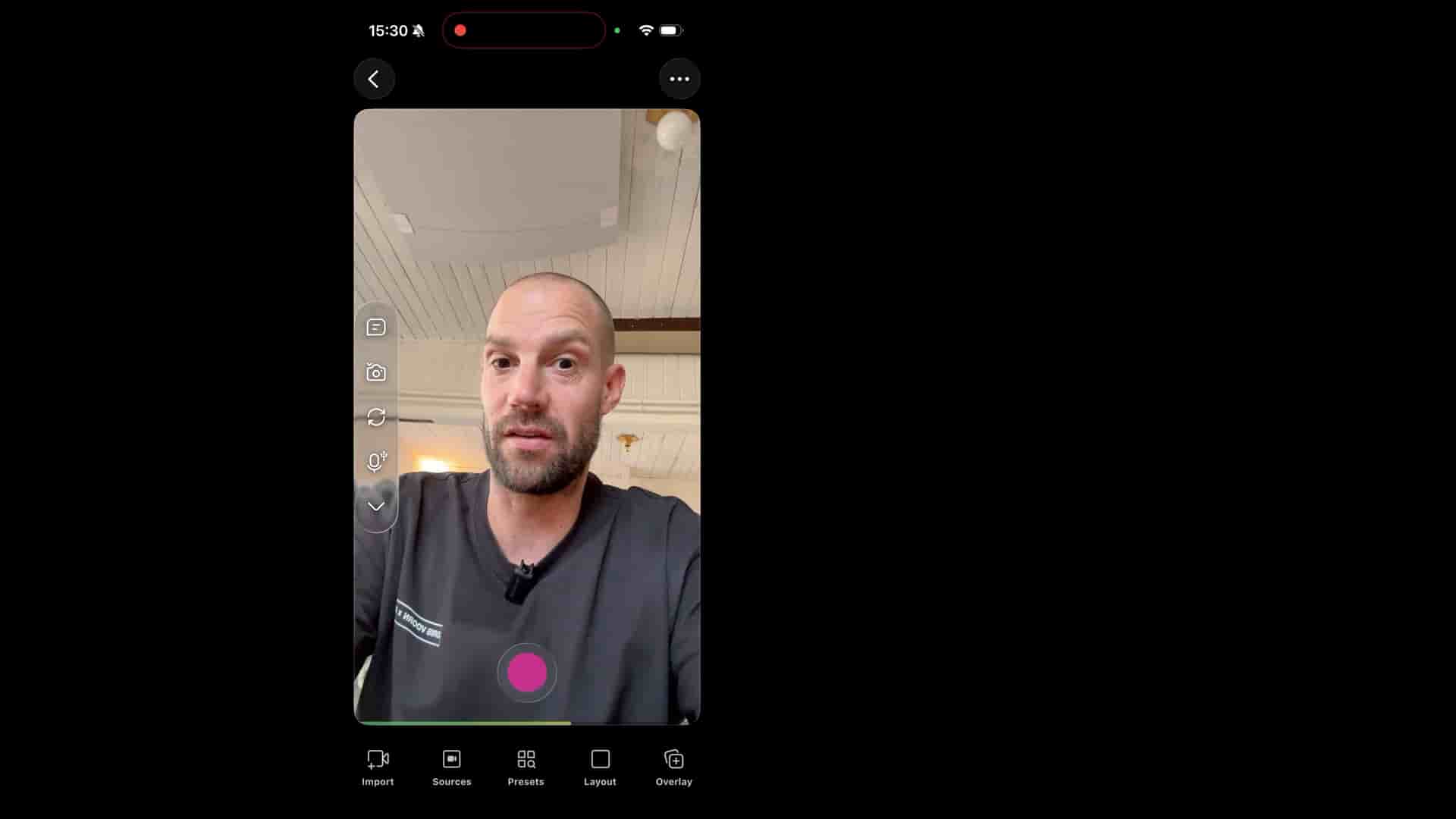
The magic happens when you connect both iPhones through the recording app. Hit the connect button on one phone, which puts it into search mode, then do the same on the second iPhone. Once they're connected, you can see both camera feeds and choose exactly how you want to frame your shot.
The layout options are surprisingly versatile. You can display only the front camera, only the top-down shot, split screen, or picture-in-picture. I tend to prefer picture-in-picture for unboxing because it shows both what I'm doing and my reaction simultaneously. But the beauty is you can switch between these layouts even after recording.
Once your angles are set, just press record and start your unboxing. And honestly, unboxing itself is kind of an art form because these packages never open easily, do they? You're struggling with tape and boxes that seem designed to never open, but that's all part of the authentic experience.
Here's where things get really cool: when you stop recording, you can go back through your footage and make cuts right there in the app. Select a clip and you can delete it if you messed up. But more importantly, you can switch sources and change layouts retroactively.
Want to change from split screen to picture-in-picture for a particular segment? Done. Want to switch which camera is featured? Just change up the angles in the edit. The app even adds nice transitions between the different layouts automatically, which gives your final video a polished, professional feel.
The ability to change everything after recording is done is a game-changer. You're not locked into whatever decisions you made before hitting record. If you realize during editing that a certain moment would work better with just the top-down shot, you can make that happen. If another section needs the split screen to show both angles, switch to that.
Using a decommissioned iPhone as your second camera means you're getting incredible value out of a device that would otherwise sit in a drawer. You don't need pro gear to create content that looks professional and engaging. The tools we already own are often more than capable.
I think this setup is genuinely awesome for anyone wanting to create unboxing content, tutorial videos, or any situation where multiple angles add value. The editing is simple, the setup is straightforward once you understand the balance requirements, and the results look great.
So if you've been thinking about creating unboxing videos or multi-angle tutorials but felt intimidated by the gear requirements, give this approach a try. Dust off that old iPhone, grab a sturdy mount, and start creating. Happy filming, and catch you on the next one.