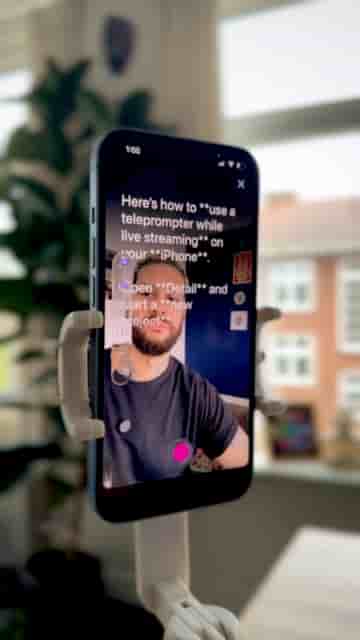
Detail lets you run a teleprompter alongside a live stream on iPhone, broadcasting to two platforms at once while saving the full session to edit later.
Live streaming from your iPhone doesn't mean you have to wing it. Detail lets you run a teleprompter alongside your stream so you can stay on script, look confident on camera, and even save the whole session to edit later.
Open Detail and start a new project. Tap the speech bubble icon to open the teleprompter, then paste your script or type it in directly. If you don't have one written yet, Detail AI can help you draft one from scratch.
Before you go live, check the scroll speed and dial it in until reading feels comfortable and natural. Getting this right beforehand means one less thing to think about once you're streaming.
Adjust scroll speed before going live so reading feels natural and you're not scrambling mid-stream.
When you're ready, tap the three dots in the top corner and choose Livestream. You can stream to up to two platforms simultaneously, like YouTube and Twitch. Paste your stream keys and tap Go Live.
Select up to two platforms to livestream like YouTube and Twitch, paste your stream keys and tap Go Live.
Once you're live, open the teleprompter again and hit play to start scrolling. You can pause or resume it at any point during the stream, which gives you flexibility if you need to take a question or go off-script for a moment.
There's one more thing worth knowing. You can record your live stream at the same time it's broadcasting. Tap record and Detail saves the full stream as a project, ready for you to edit and post afterward.
You can also record your live stream at the same time.
That means your live content doesn't have to stay live-only. One session, two outputs: a live broadcast and an edited video you can repurpose however you want.