You can turn saved slide images into a narrated, annotated class presentation video on your iPad using Detail, with music added from a TikTok, YouTube, or Instagram link.
Turning a slide deck into a proper video for a class presentation is simpler than most people think, and you can do the whole thing on your iPad in Detail without touching a laptop.
Start by saving your slides as images on your iPad. Once that's done, open Detail and tap the plus button to create a new project. Tap Import, choose Import from Photos, and select all the slide images you want. Each image lands on your timeline as its own slide, and you can tap any one of them to adjust how long it stays on screen.
To talk over your slides, tap the voiceover button and start speaking while the slideshow plays through. If anything runs long or starts in the wrong place, you can move or trim the voiceover clip after recording.
Each image becomes a slide on your timeline.
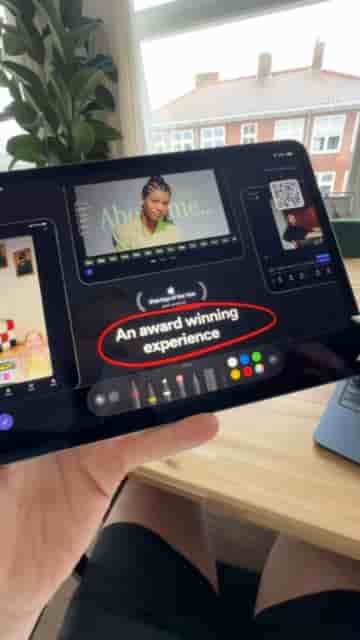
If you want to add a bit more, go to Overlays and drop in text annotations over any slide. You can also pick up your Apple Pencil and draw directly on top of the slides for a more personal touch.
Use your Apple Pencil to draw right on top of the slides.
Wrap it up by adding background music. Paste a sound link from TikTok, YouTube, or Instagram and adjust the volume to sit comfortably under your voice.
That is it, an easy slideshow video done on your iPad.
That's a complete class presentation video, recorded, annotated, and scored, built entirely on your iPad.