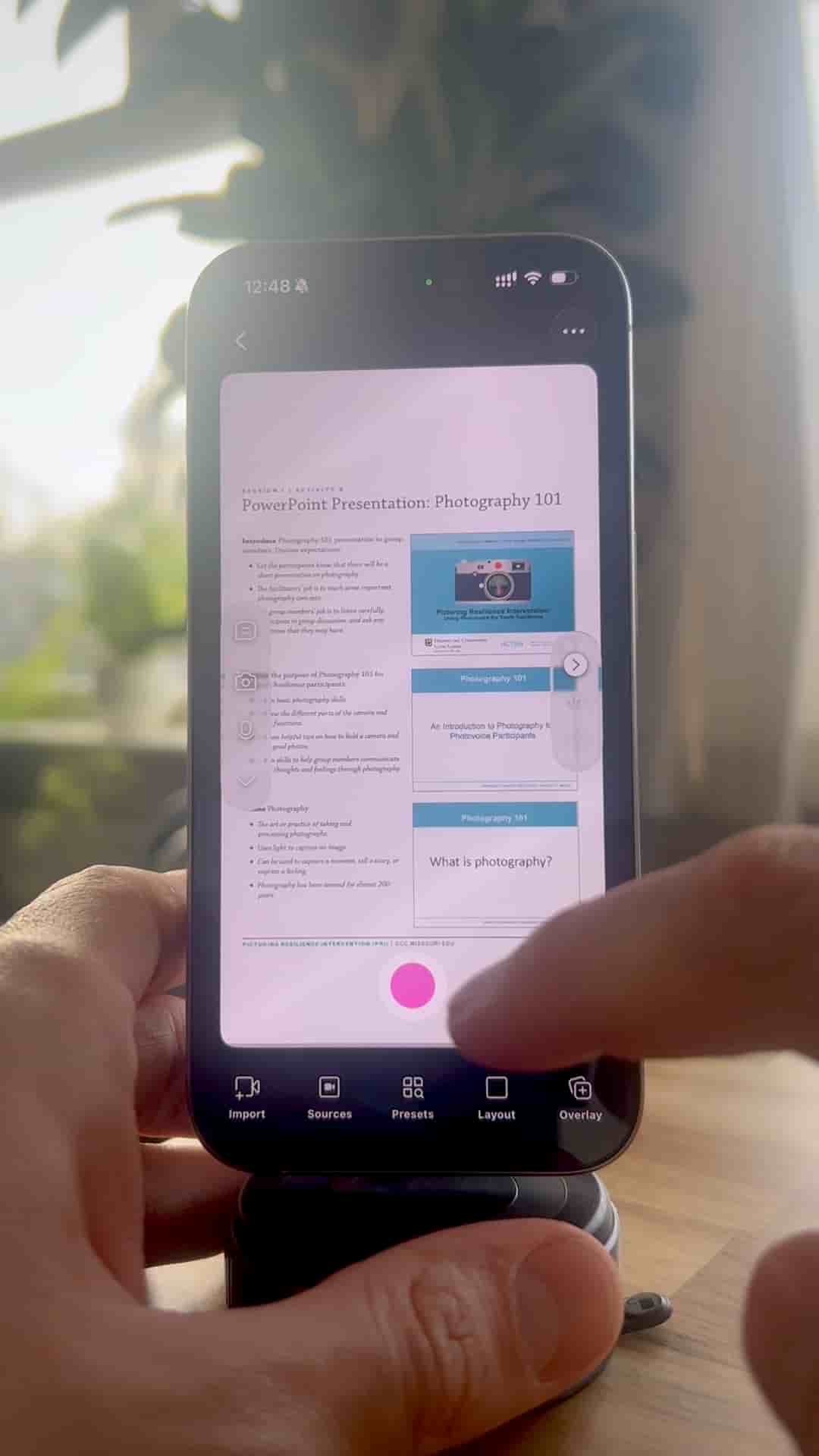
Turning a slide deck into a video takes minutes in Detail: export as PDF, import, record with or without voiceover, then add automatic zoom effects in the editor.
Most people overcomplicate turning a presentation into a video. You don't need screen recording software, a separate mic setup, or a complicated editing workflow. The whole thing takes a few minutes with the Detail app, and the result looks clean and professional.
Start by exporting your presentation as a PDF. This works whether you built your slides in PowerPoint, Keynote, or Canva — any of them. Once you have the PDF, open Detail, start a new project, tap Sources, then Files, and select your file. Make any adjustments you need, then tap Record when you're ready to go.
Export your deck as a PDF first. That single step works across PowerPoint, Keynote, and Canva.
You have two options while recording: add a voiceover as you present, or mute yourself if you just want the slides on their own. Use the arrows to move forward or back through your slides as you talk. When you're done, stop the recording.
A clean professional presentation video made fast.
After recording, you can trim or delete any parts you don't want. The more interesting feature is automatic zoom. Split the section where you want to zoom in, tap Source, and select the part of the slide you want to highlight. Detail adds the zoom effect automatically — no keyframing, no manual animation work.
"Detail will add the effect automatically."
That's the whole process. Export as PDF, import into Detail, record, edit, done.