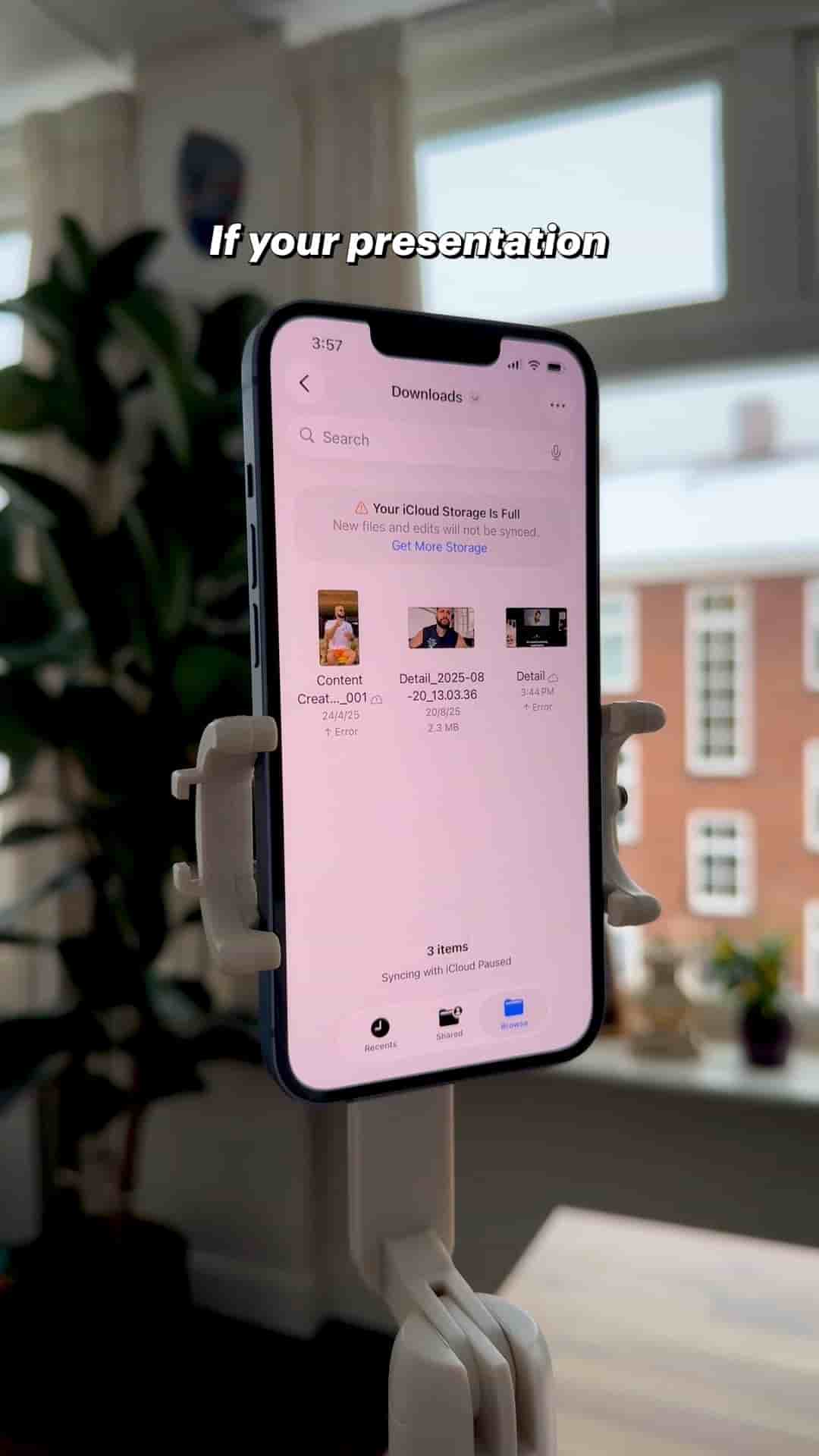
I turn a PDF into a lecture video with my face on top, using only the Detail app on my phone. Record, fine tune, caption, add music.
A PDF, a phone, and the Detail app are enough to make a full lecture video with your face on top of your slides. The whole process is simple, and the result looks clean and professional.
If your presentation lives in PowerPoint or Keynote, export it as a PDF first. Photos and slide decks work too, but the PDF is the format you'll bring in.
Open the Detail app on your phone, tap Present slides, then choose PDF from files. Pick your PDF and you're in.
You can record in portrait or landscape. The default is the picture-in-picture layout, with your camera sitting on top of the slide. You can resize and reframe it until it sits where you want.
When you're ready, tap record and start presenting. Use the arrows to move from one slide to the next.
When you're done, you're going to have a separate clip for each slide.
That detail matters for what comes next. Because every slide is its own clip, you aren't stuck with one long take.
From there you can make splits or cuts wherever you need them. If a slide ran long or you stumbled on a sentence, you fix it at the clip level instead of re-recording the whole lecture.
You can also generate captions with one tap.
To finish, add a music track. You can paste a link from YouTube, TikTok, or Instagram, or choose one of the royalty-free songs we have at Detail. Adjust the volume of the song so it sits under your voice, and you're done.
"It looks simple, clean, and professional. A full video lecture made straight from your PDF."
The steps, in short:
A finished lecture comes out of one recording session and a few taps of cleanup.