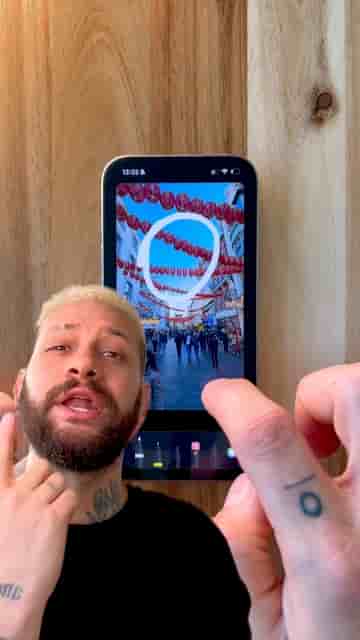
Drawing arrows, highlights, and doodles on videos takes thirty seconds to set up in Detail, using nothing but your finger.
Drawing directly on your videos — arrows, highlights, little doodles, whatever you need — is one of those small things that makes a surprisingly big difference. I do it whenever I want to point something out, explain an idea, or just make a video feel more fun. And it takes about thirty seconds to set up in Detail.
Download and open the Detail app, start a new project, and import the video you want to work on. From there, tap Overlays, then Draw, and pick a brush. Tap it again to adjust the size and opacity, then choose your color.
Arrows, highlights, notes, little doodles, whatever you want.
Once everything is set, just draw directly on the video with your finger. That's the whole input method — no stylus, no complicated tools.
When you're done drawing, you can animate the drawing and adjust how visible it is. Tap the checkmark to head back to the timeline, where you can drag the drawing layer to make it shorter or longer. Add as many drawing layers as you need.
Fast, simple, and it makes videos way clearer and way cooler.
It really is that quick. The feature takes almost no time to learn and the payoff shows up immediately in how much cleaner your explanations look on screen.